
How to Export Interview Transcripts
| Open a Guide |
| Export All Interview Transcripts |
| Play Back Interview Audio |
| Export an Individual Interview Transcript |
Qualta allows you to export interview transcripts individually or in bulk. Interview transcripts can be exported in CSV, Word, and PDF formats. On Pro and Enterprise plans, interview audio can also be played back and exported as MP3 files.
Export options are available for Guides that contain completed interviews.
Open a Guide
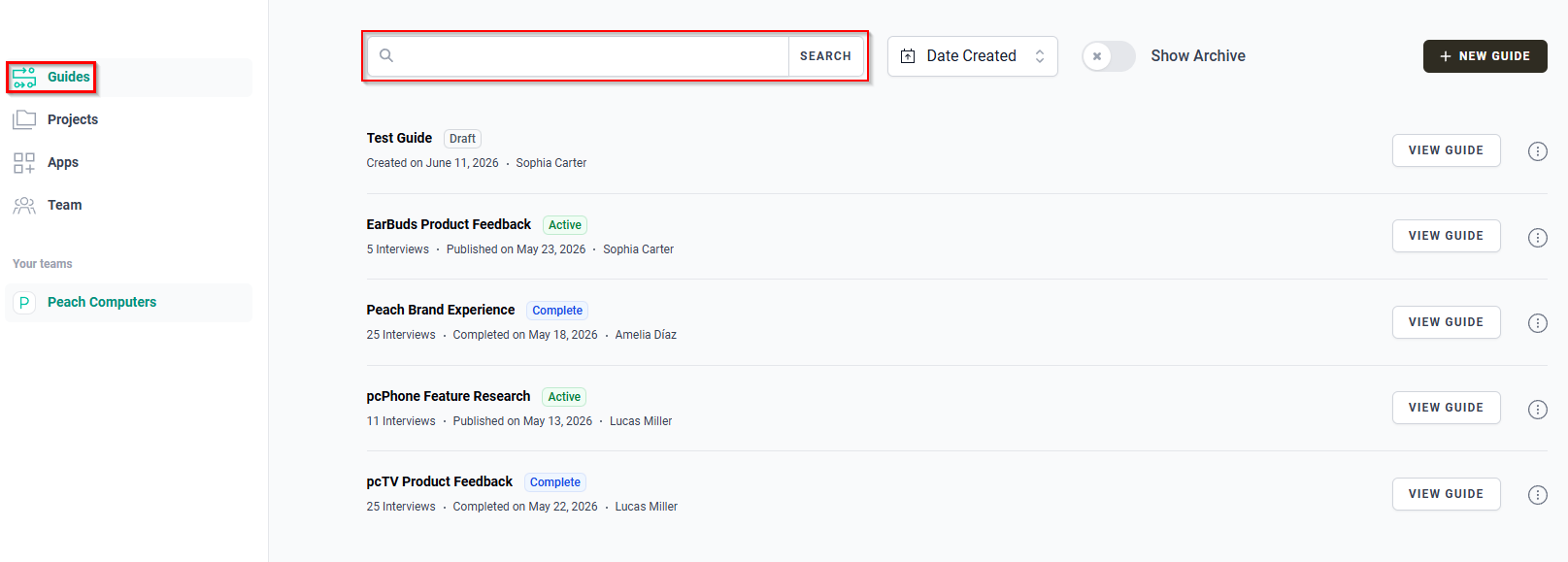
- In the left navigation menu, click Guides.
- Use the SEARCH bar to locate the Guide that contains the interviews you want to export.
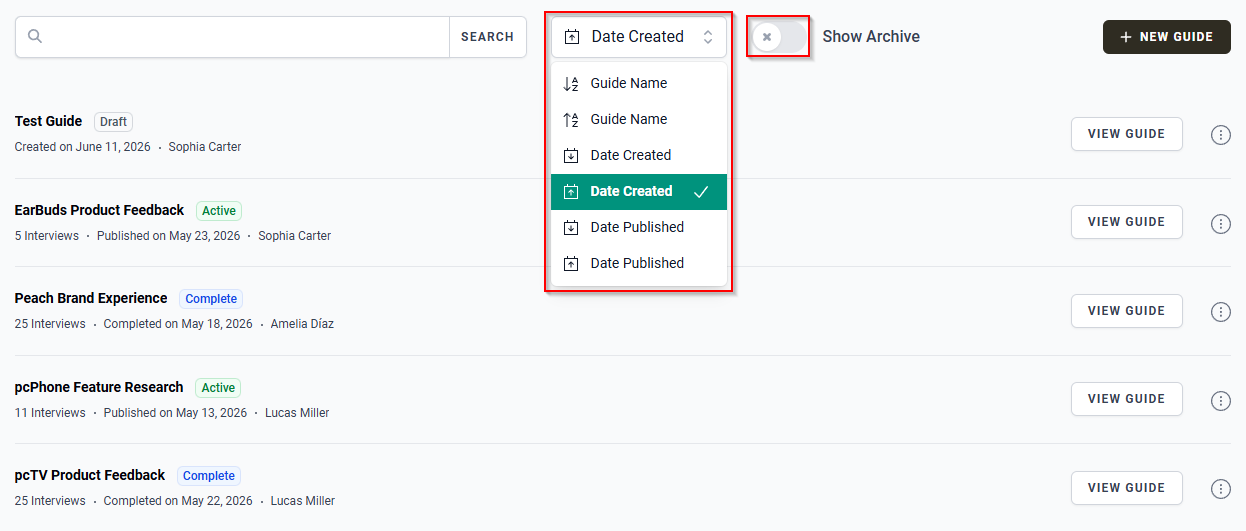
- Alternatively, use the sorting options to sort the Guide list by Guide Name, Date Created, or Date Published.
- You can also enable the Show Archive toggle to display archived entries.
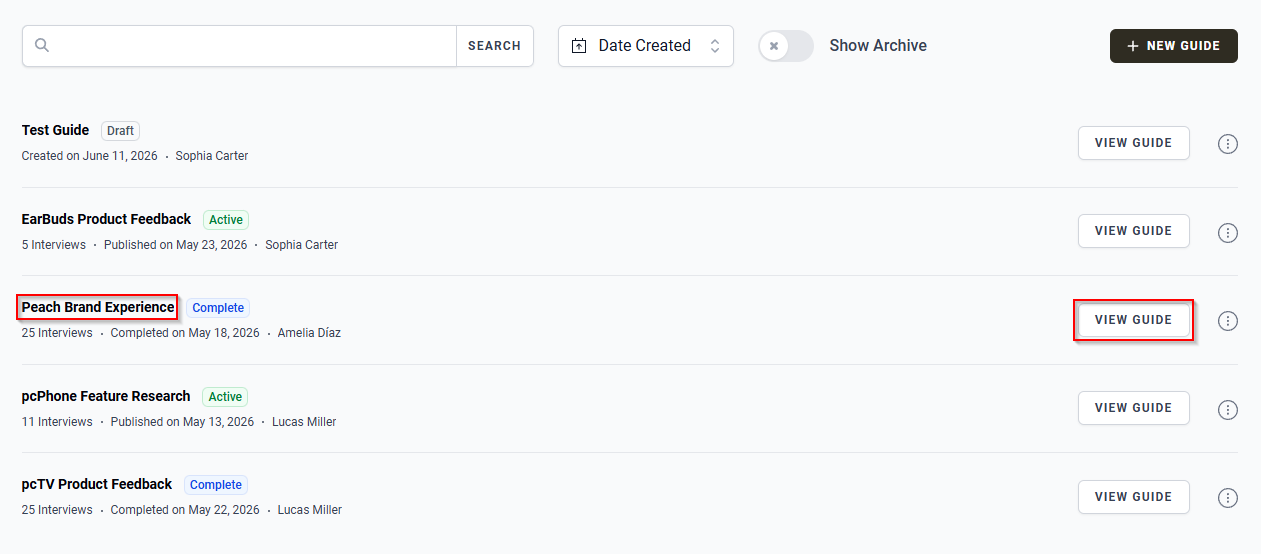
- Open the Guide by either:
- Clicking the Guide name.
- Clicking the VIEW GUIDE button.
You will be taken to the Guide Details page.
Export All Interview Transcripts
- Open the Guide containing the interviews you want to export.
- In the Interviews tab, do one of the following:
- Click Export All to immediately export all interviews as a CSV file.
- Click the downward arrow next to Export All to choose a different export format.
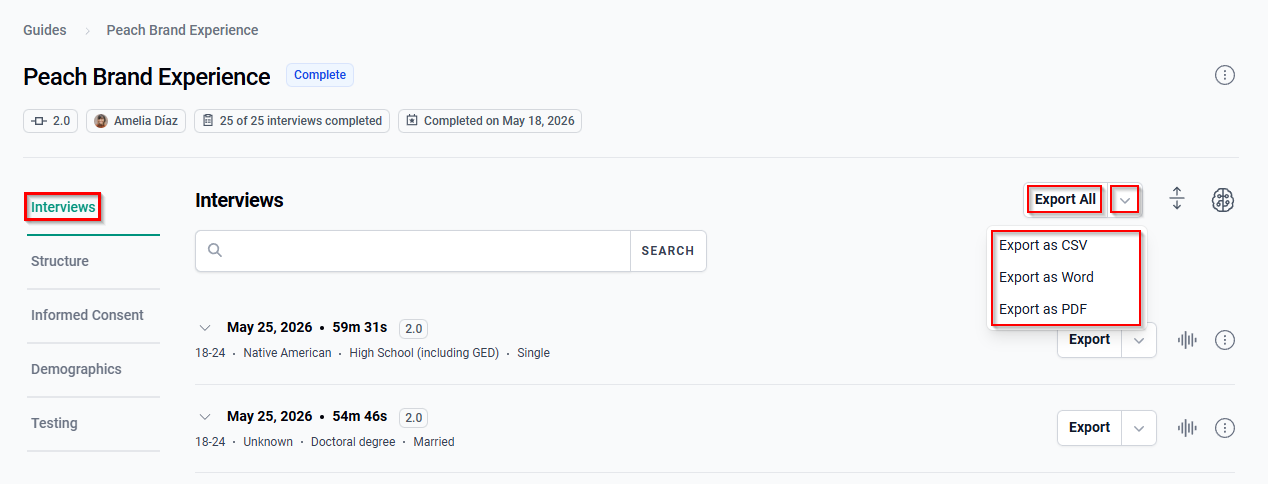
- If you clicked the downward arrow next to Export All, select one of the available export formats:
- Export as CSV
- Export as Word
- Export as PDF
The export begins immediately after you select a format.
Play Back Interview Audio
If you want to review an interview before exporting it, you can play back the interview recording directly from the Interviews tab.
- Locate the interview you want to review.
- Click the audio playback icon beside the interview.
- Use the Pause button to pause playback. Click Play to resume playback.
- Click anywhere on the playback timeline to jump to a specific point in the recording.
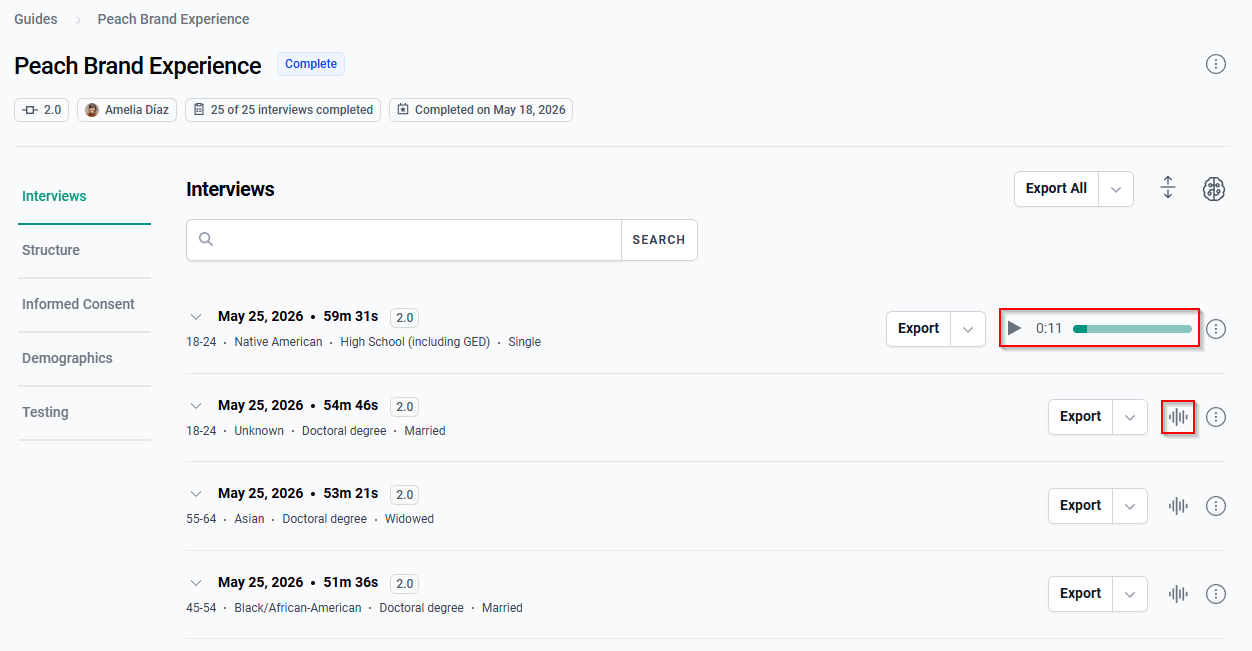
Audio playback and MP3 export are only available on Pro and Enterprise plans.
Export an Individual Interview Transcript
- Open the Guide containing the interview you want to export.
- In the Interviews tab, locate the interview you want to export.
Tip: You can use the SEARCH bar to find a specific interview. If the interview is not displayed on the current page, use the page navigation controls at the bottom of the interviews list to move between pages.
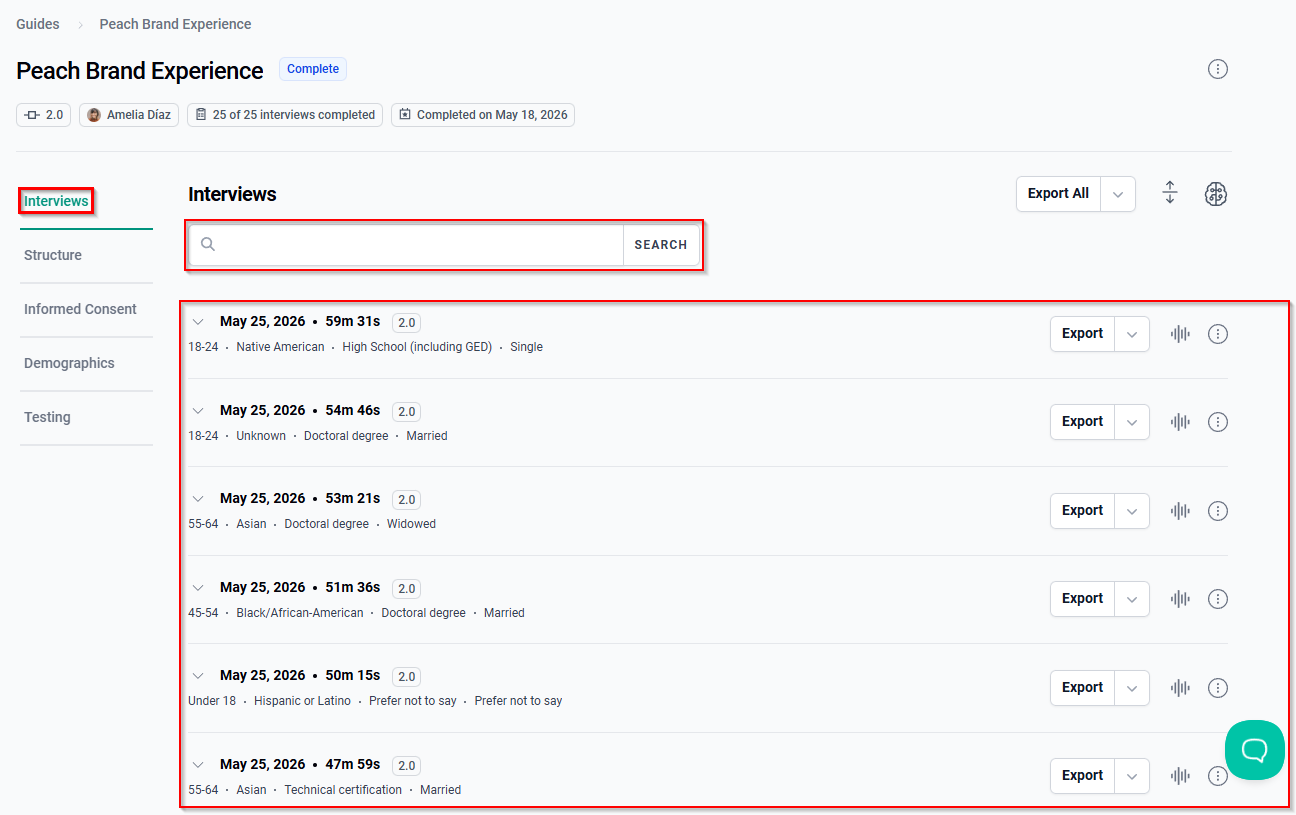
- Do one of the following:
- Click Export to immediately export the interview as a CSV file.
- Click the downward arrow next to Export to choose a different export format.
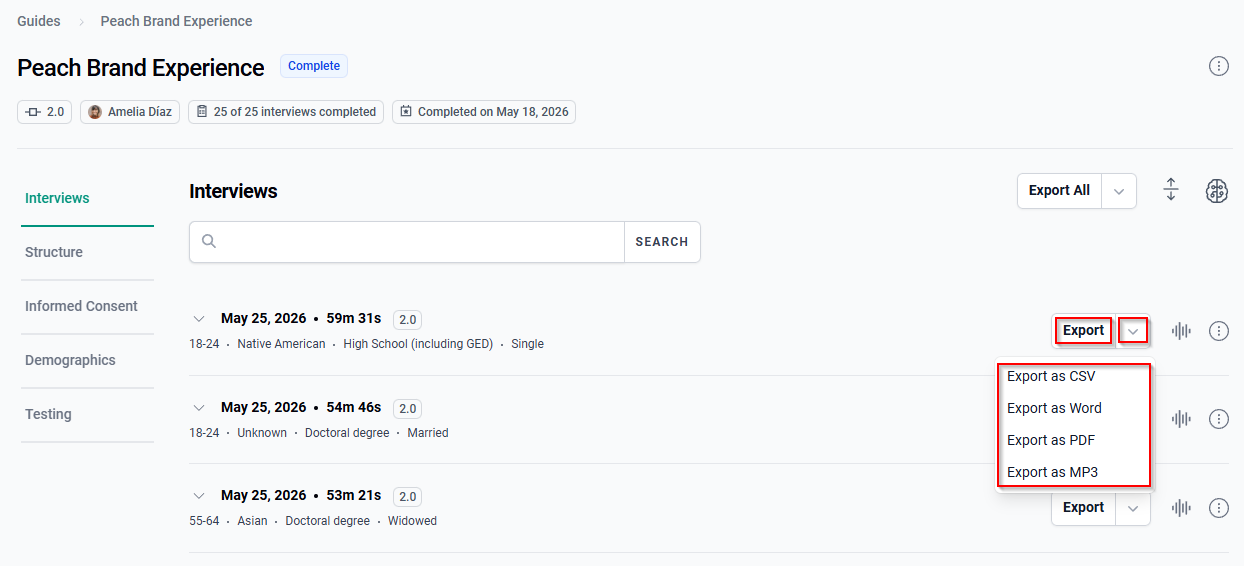
- If you clicked the downward arrow next to Export, select one of the available export formats:
- Export as CSV
- Export as Word
- Export as PDF
- Export as MP3 (Pro and Enterprise plans only)
MP3 export is only available on Pro and Enterprise plans.
The export begins immediately after you select a format.