
How to Test a Guide
| Open a Guide for Testing |
| Access the Testing Tab |
| Edit the Guide Structure |
| Run a Test Interview |
| Apply Structure Changes |
| Review Test History |
Testing a Guide allows you to review the interview experience, validate Guide structure changes, and verify that questions behave as expected before conducting interviews with respondents.
Open a Guide for Testing
To test a Guide, first open the Guide you want to test:
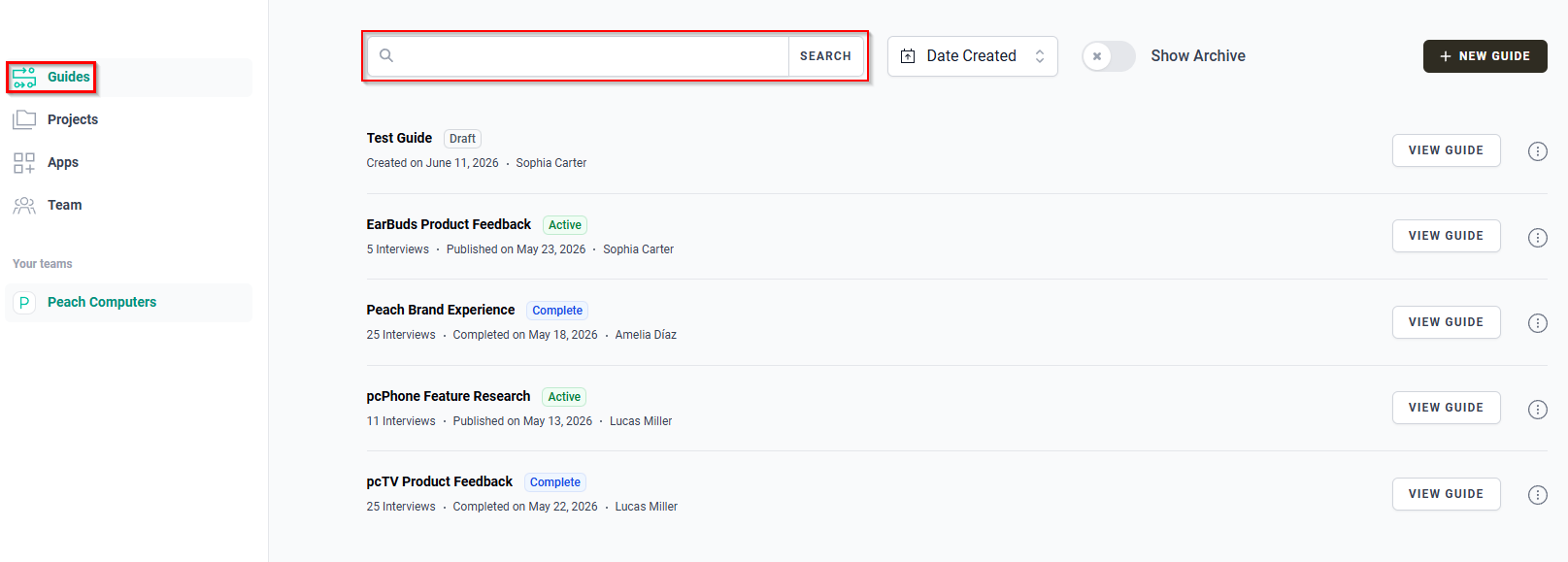
- In the navigation menu, click Guides.
- Use the SEARCH bar to locate the Guide you want to test.
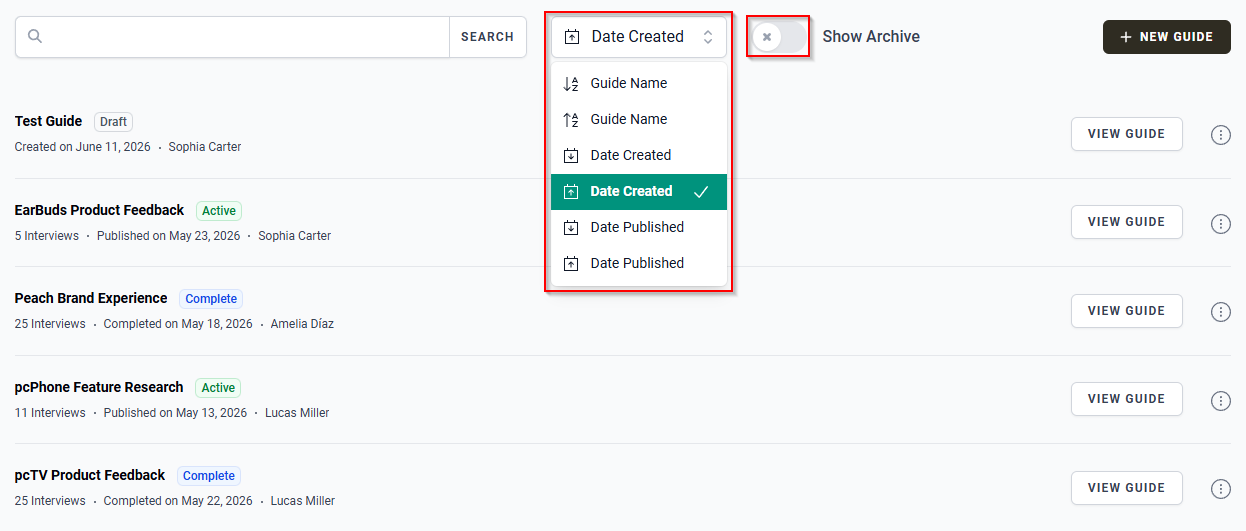
- Alternatively, use the sorting options to sort the Guide list by Guide Name, Date Created, or Date Published.
- You can also enable the Show Archive toggle to display archived Guides.
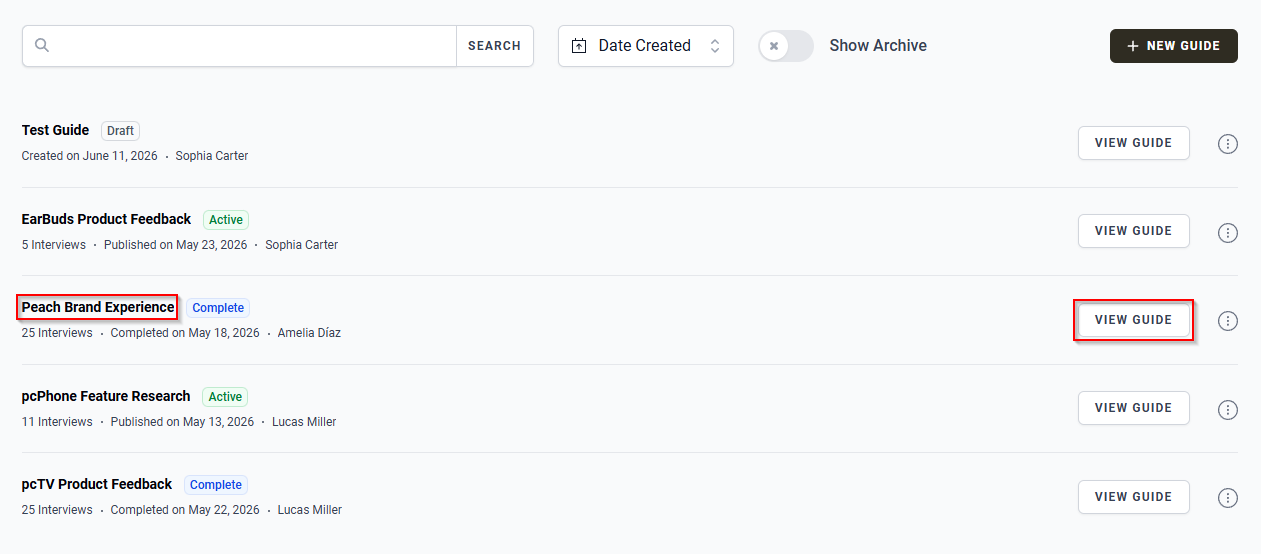
- Open the Guide by either:
- Clicking the Guide name.
- Clicking the VIEW GUIDE button.
Access the Testing Tab
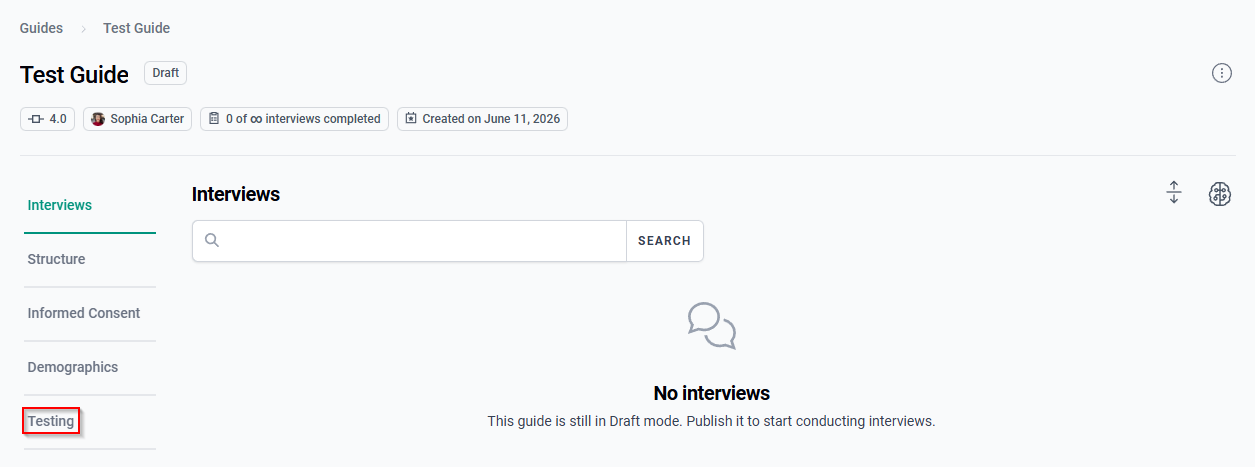
When you open a Guide, the Guide Detail page is displayed.
The Guide Detail page contains several tabs that allow you to review and manage different aspects of the Guide, including:
- Interviews
- Structure
- Informed Consent
- Demographics
- Testing
To begin testing a Guide, click the Testing tab.
Edit the Guide Structure
The Testing tab allows you to modify a Guide's structure and test those changes before applying them to the Guide.
The Structure sub-tab displays the Guide's Sections and their settings.
The Testing tab reflects the currently selected Guide version. Click Version to select a different version of the Guide for testing.
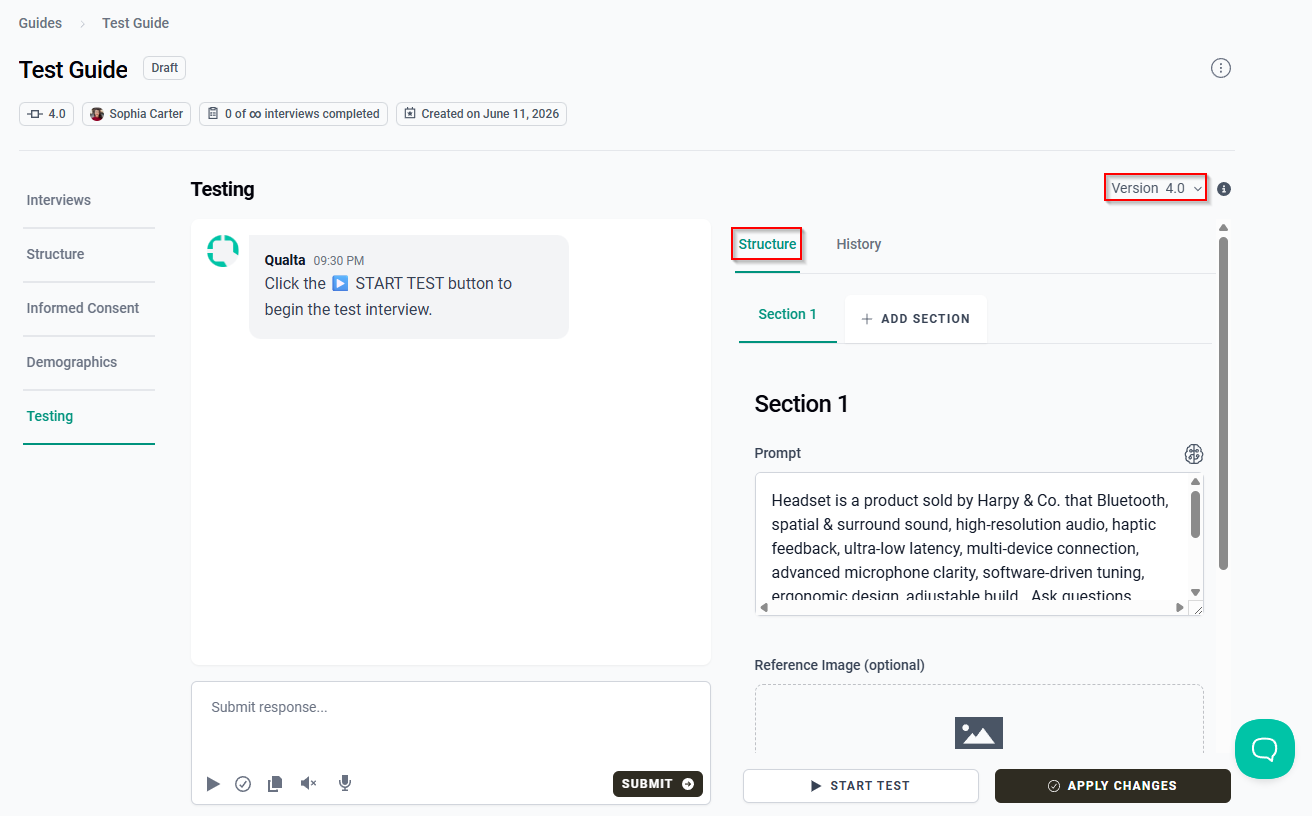
Changes made in the Structure sub-tab are temporary. They are not permanently saved until you apply the changes.
To modify a Section:
- Select the Section you want to edit.
- Update the Section settings as needed, including:
- Prompt
- Reference Image
- Approximate Number of Questions
- Static Questions
- Repeat this process for any additional Sections you want to modify.
Adding additional Guide Sections is only available on Pro and Enterprise plans.
Run a Test Interview
After configuring the Guide structure, you can run a test interview to review the interview experience and validate your changes.
To start a test interview:
- Click the Start Test icon or the START TEST button.
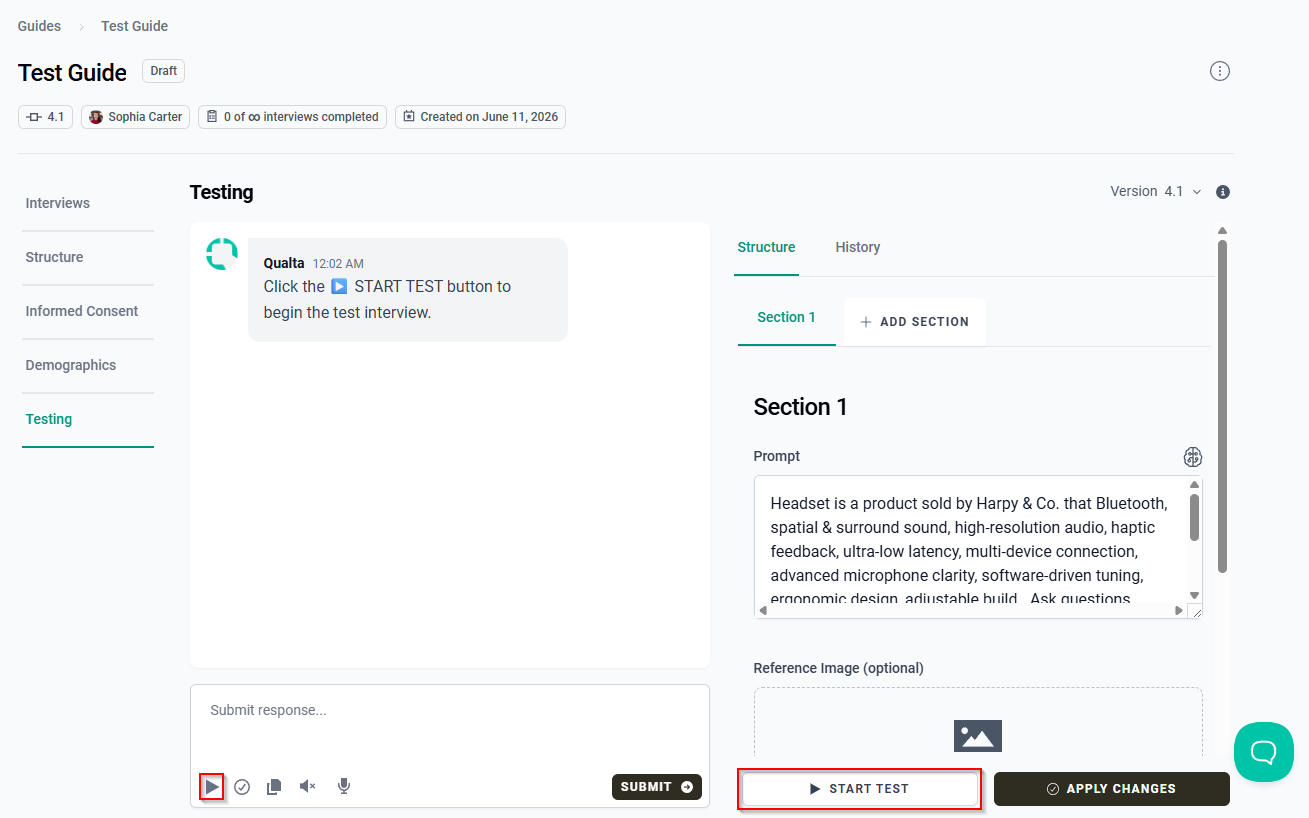
Changes made in the Structure sub-tab can be tested immediately. You do not need to apply the changes before running a test interview.
The Informed Consent section is displayed before the test interview begins.
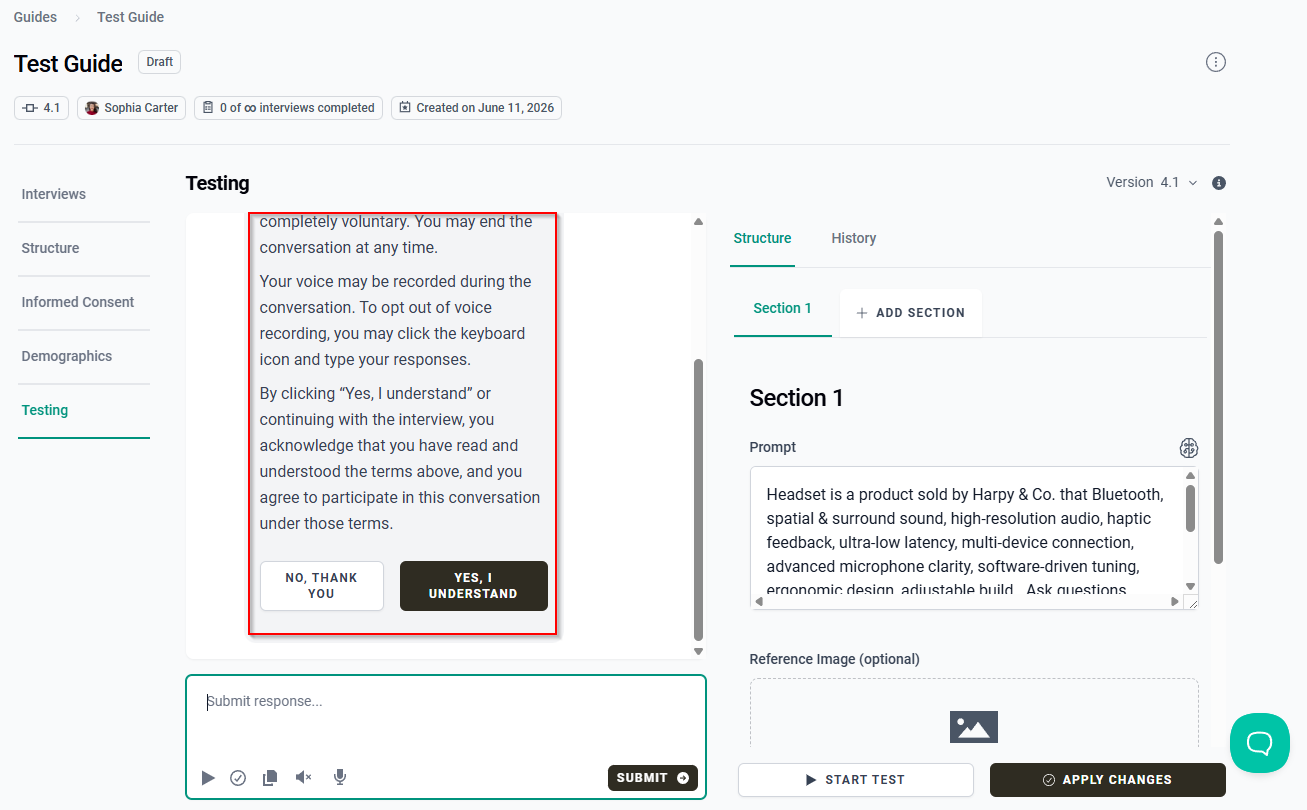
- Review the Informed Consent section and click YES, I UNDERSTAND to continue the interview.
The test interview proceeds through each Guide Section in the order it appears in the Structure sub-tab.
If a Guide contains multiple Sections, the test interview proceeds through each Section in the order it appears in the Structure sub-tab.
- Answer the interview questions.
The test interview includes:
- Static Questions
- AI-generated interview questions
If Demographics are enabled for the Guide, demographic questions are displayed after the interview questions.
- Complete the test interview.
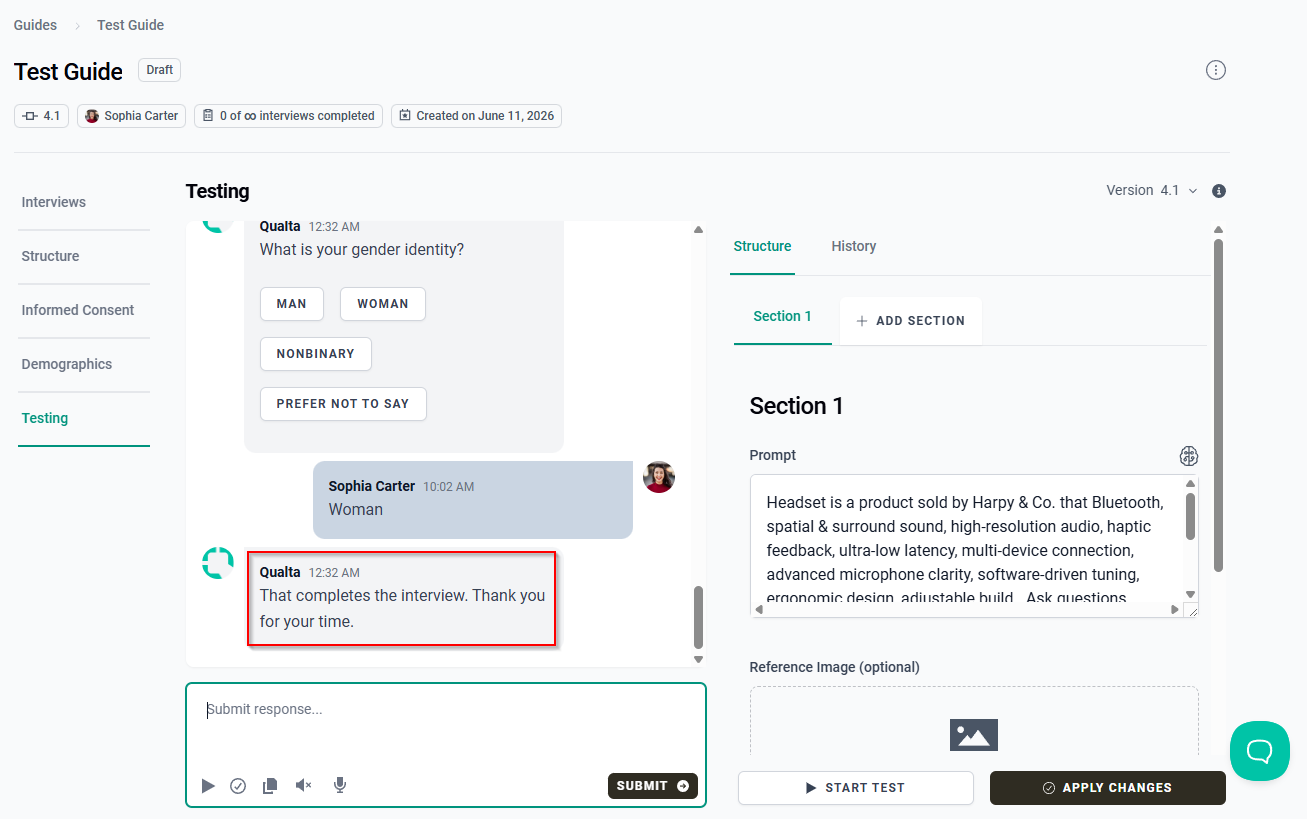
When the interview is complete, Qualta AI displays a confirmation message.
Apply Structure Changes
Changes made in the Structure sub-tab are not permanently saved until they are applied.
To save your changes:
- Make the required changes in the Structure sub-tab.
- Optionally run a test interview to validate the changes.
- Click the Apply Changes icon or the APPLY CHANGES button.
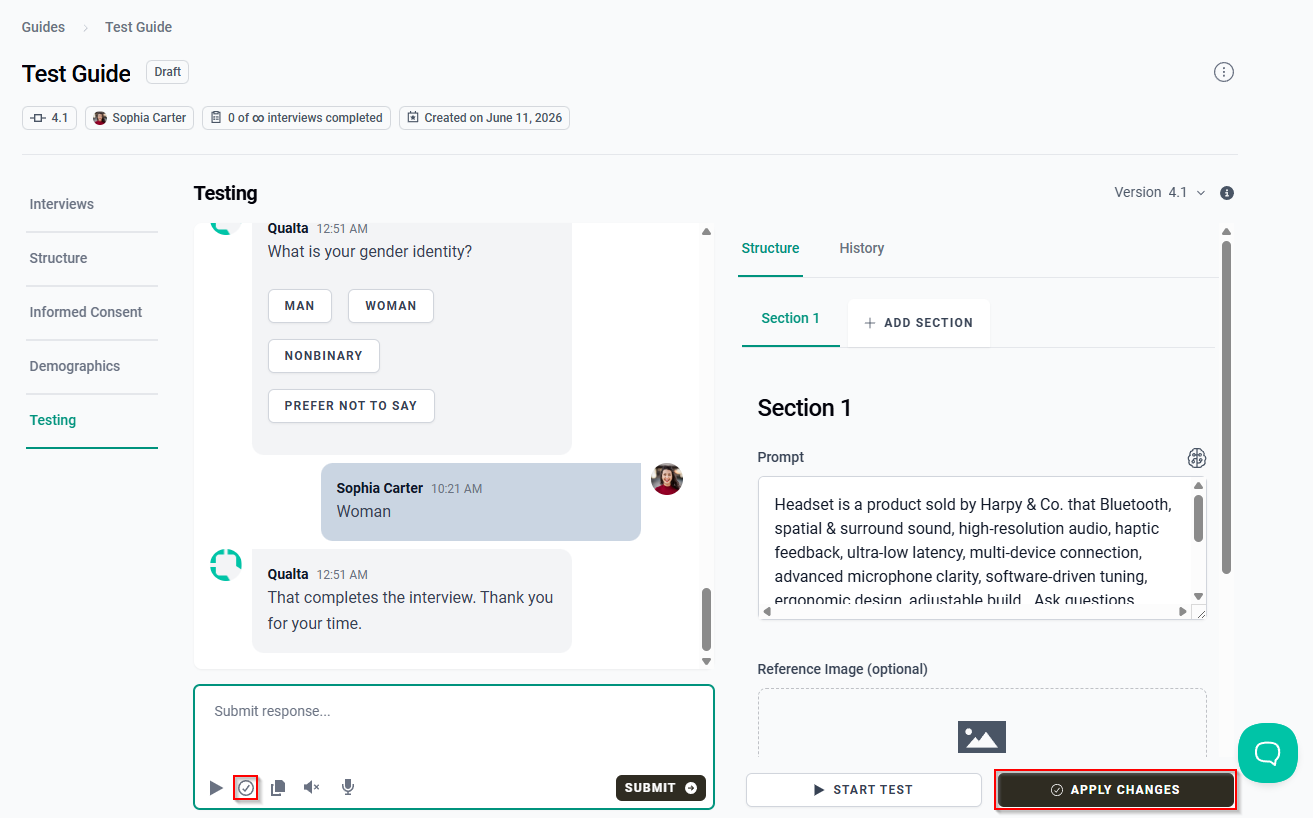
The changes are saved to the Guide after they are applied.
If you leave the Testing tab without applying your changes, the changes are discarded.
Review Test History
The History sub-tab displays previous test interviews.
To review a previous test interview:
- Click the History sub-tab.
- Locate the test interview you want to review.
- Click the expand arrow next to the test interview.
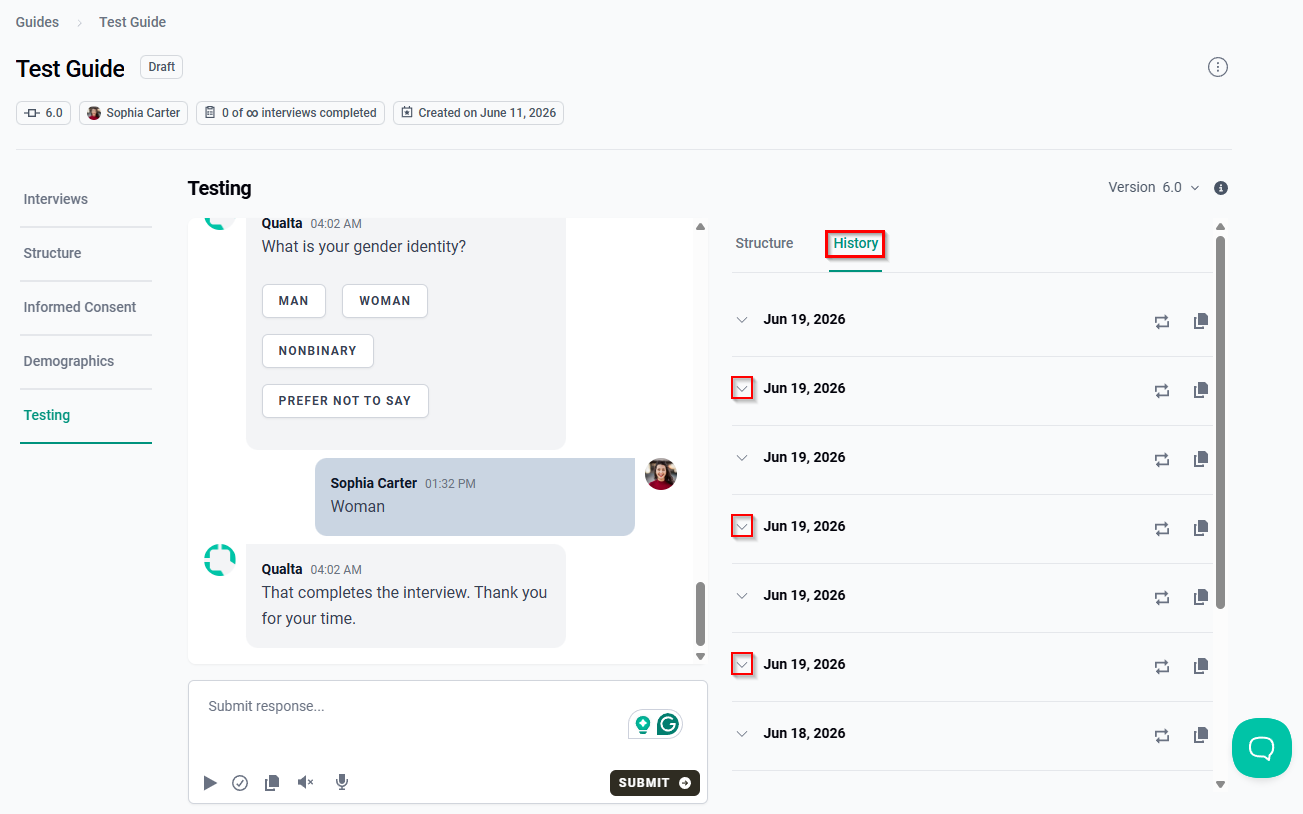
The expanded view displays the interview questions and responses from the selected test interview.
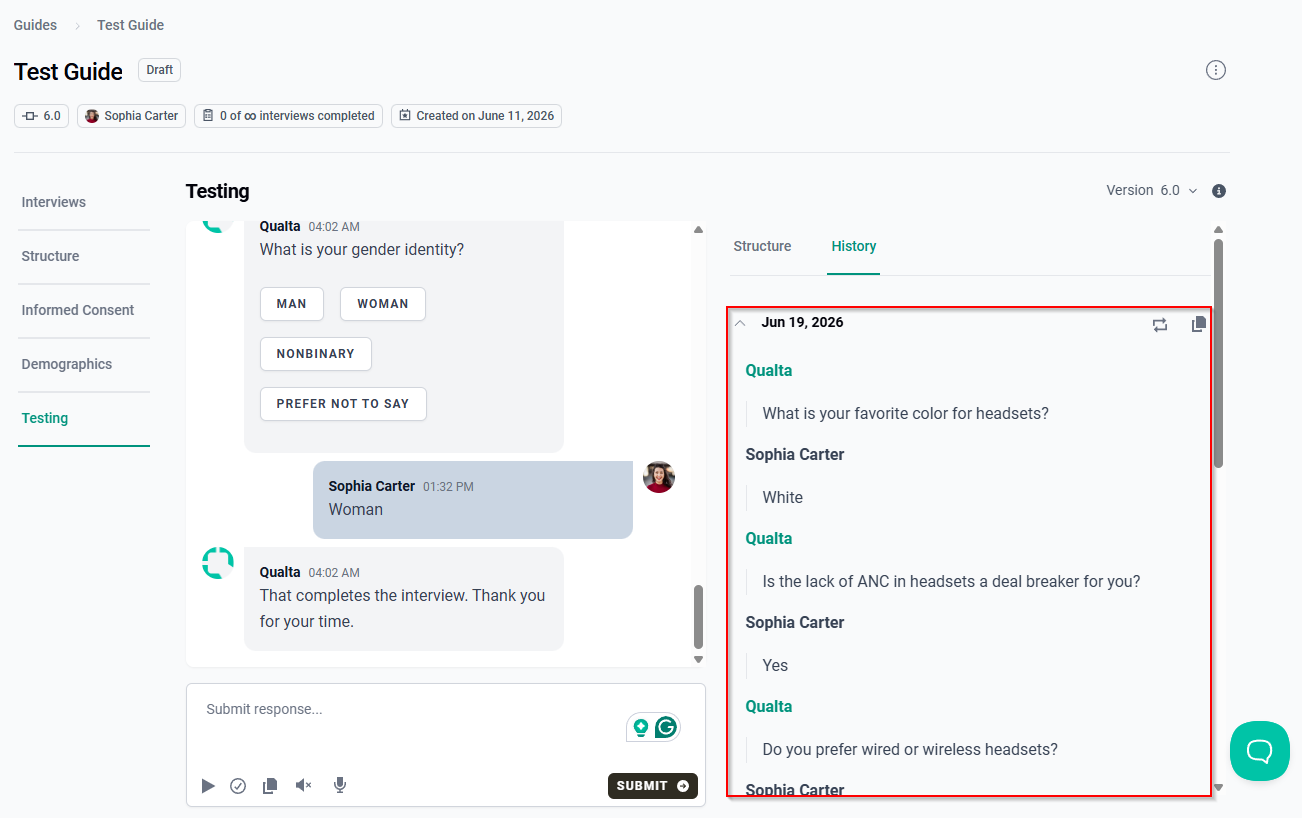
The History sub-tab displays interview questions and responses only. Informed Consent and Demographic responses are not included.
Repeat the Test
To view the Guide structure used for a test interview:
- Locate the test interview you want to review.
- Click the Test Repeat icon next to the test interview.
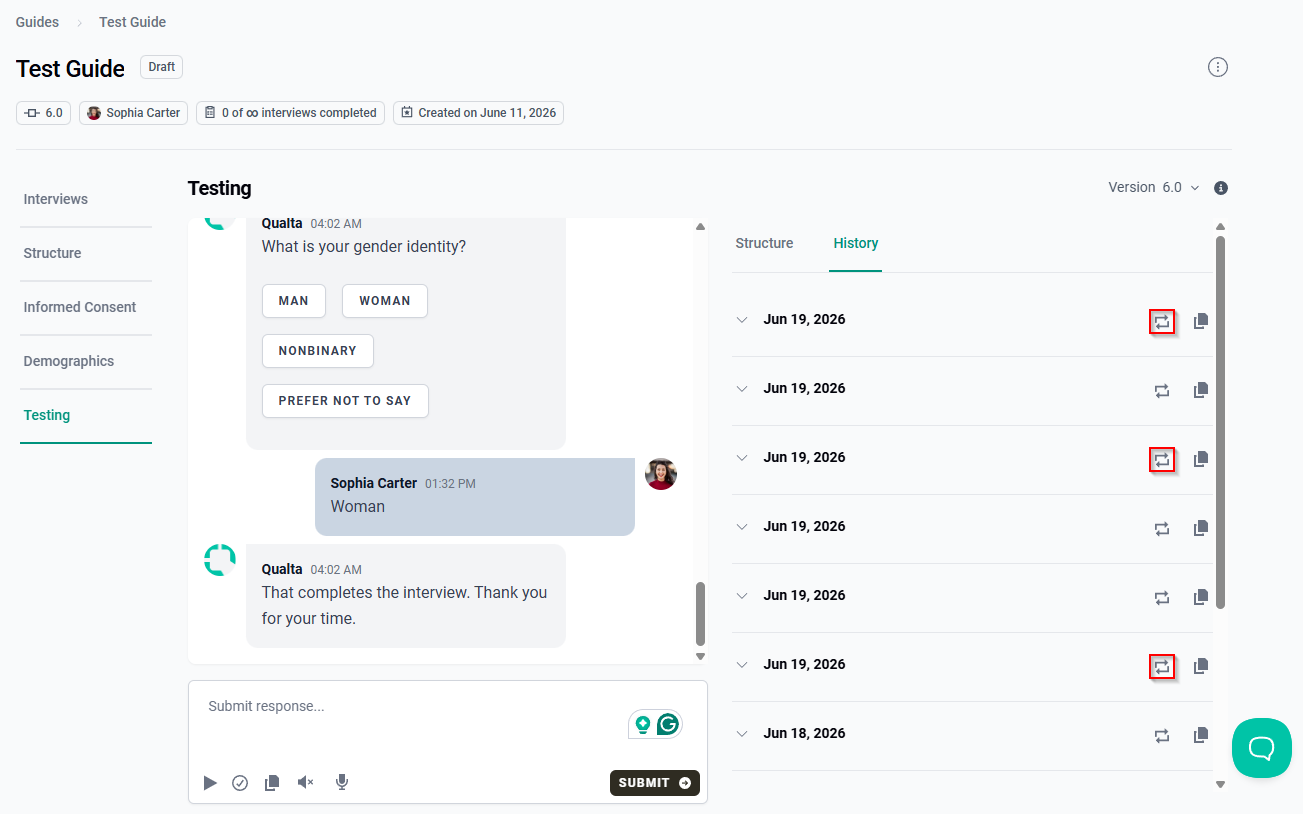
The Structure sub-tab opens and displays the Guide structure that was used when the test interview was conducted.
You may now start a new test interview with the selected Guide structure.
Copy a Test Transcript
To copy a test interview transcript:
- Locate the test interview you want to review.
- Click the Copy Transcript icon next to the test interview.
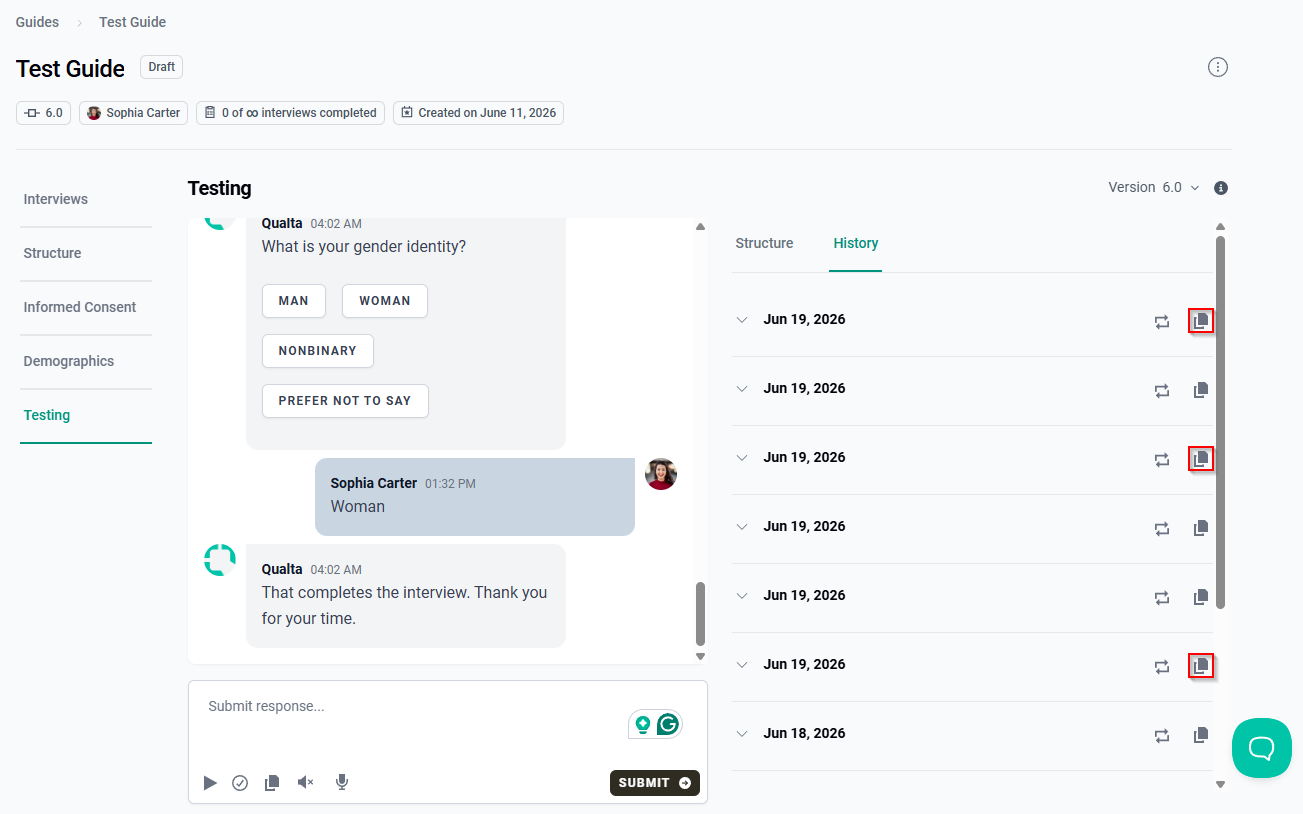
The transcript is copied to your clipboard.
Copied transcripts include interview questions and responses only. Informed Consent and Demographic responses are not included.