How to Analyze a Guide (Ask Qualta)
| Select Guide |
| Accessing Ask Qualta |
| Asking Questions and Getting AI Responses |
| Managing Your Chat Sessions (Chat Controls) |
| Reviewing Ask Qualta History |
The Ask Qualta feature (also referred to as Guide Analysis) empowers you to quickly glean insights and answers from your conducted Guide interviews using AI. This powerful tool allows you to ask natural language questions about your interview data and receive AI-generated responses.
This article will guide you through accessing and using Ask Qualta, understanding its requirements, asking effective questions, and utilizing the various chat controls for in-depth analysis.
Select Guide
- Navigate to the Guides page in the navigation menu.
- Use the SEARCH bar to locate the Guide you want to analyze by name.
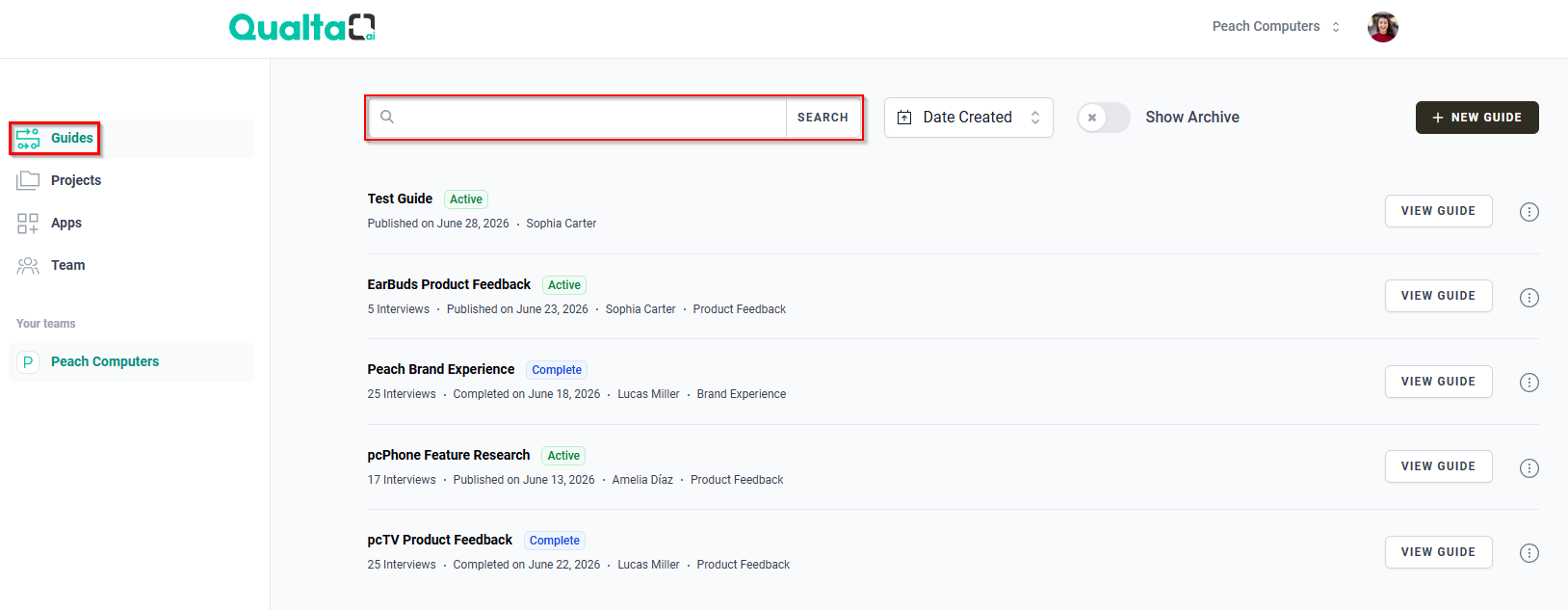
- Alternatively, use the sorting options to sort the Guide listing by Guide Name, Date Created, or Date Published.
- Additionally, toggling the Show Archive button will display archived Guide entries.

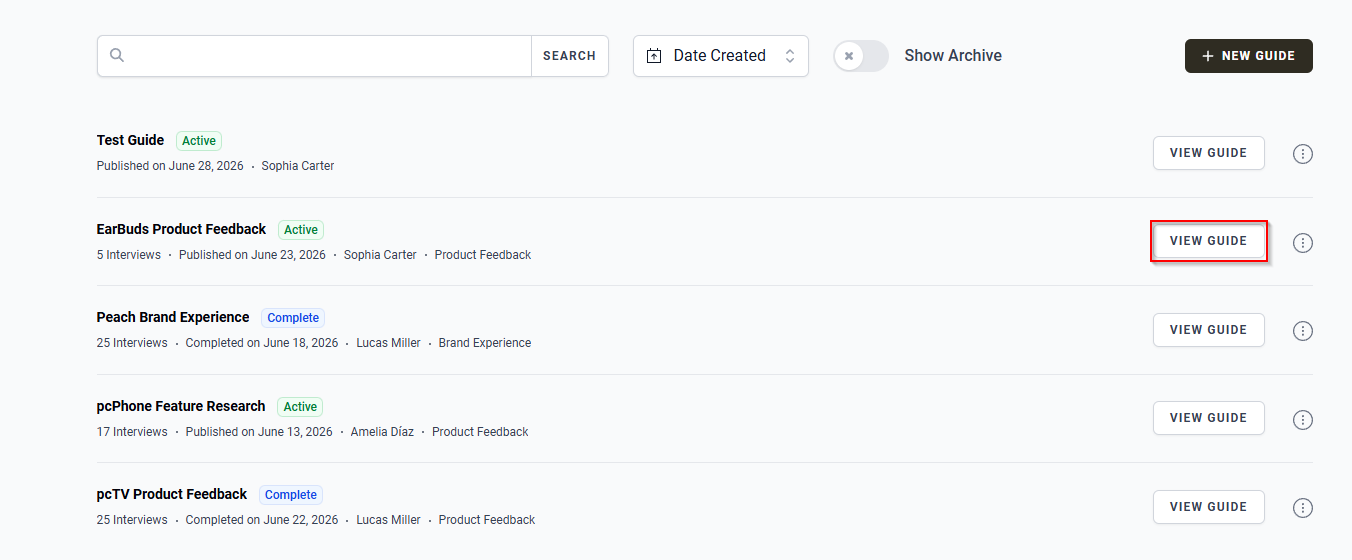
- Next, from the Guide listing, select the VIEW GUIDE button next to the specific Guide you want to analyze. This will direct you to the Guide's detail page.
Accessing Ask Qualta
On the Guide’s detail page, click the Ask Qualta button (a brain icon) located in the upper right corner. You can also use the following keyboard shortcuts:
- Mac: Command + I
- Windows: Control + I
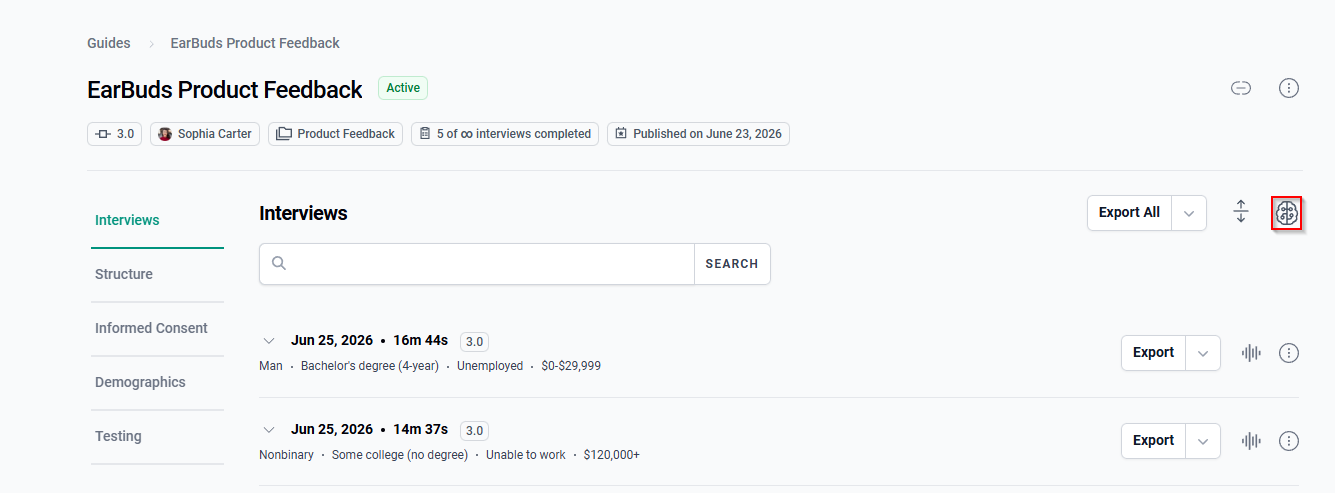
This will open the Ask Qualta panel.
If you do not have a Pro or Enterprise plan, you will see a 'Pro' badge next to Ask Qualta and a message prompting you to upgrade to access this feature.
Ask Qualta is only available to Pro and Enterprise plan subscribers.
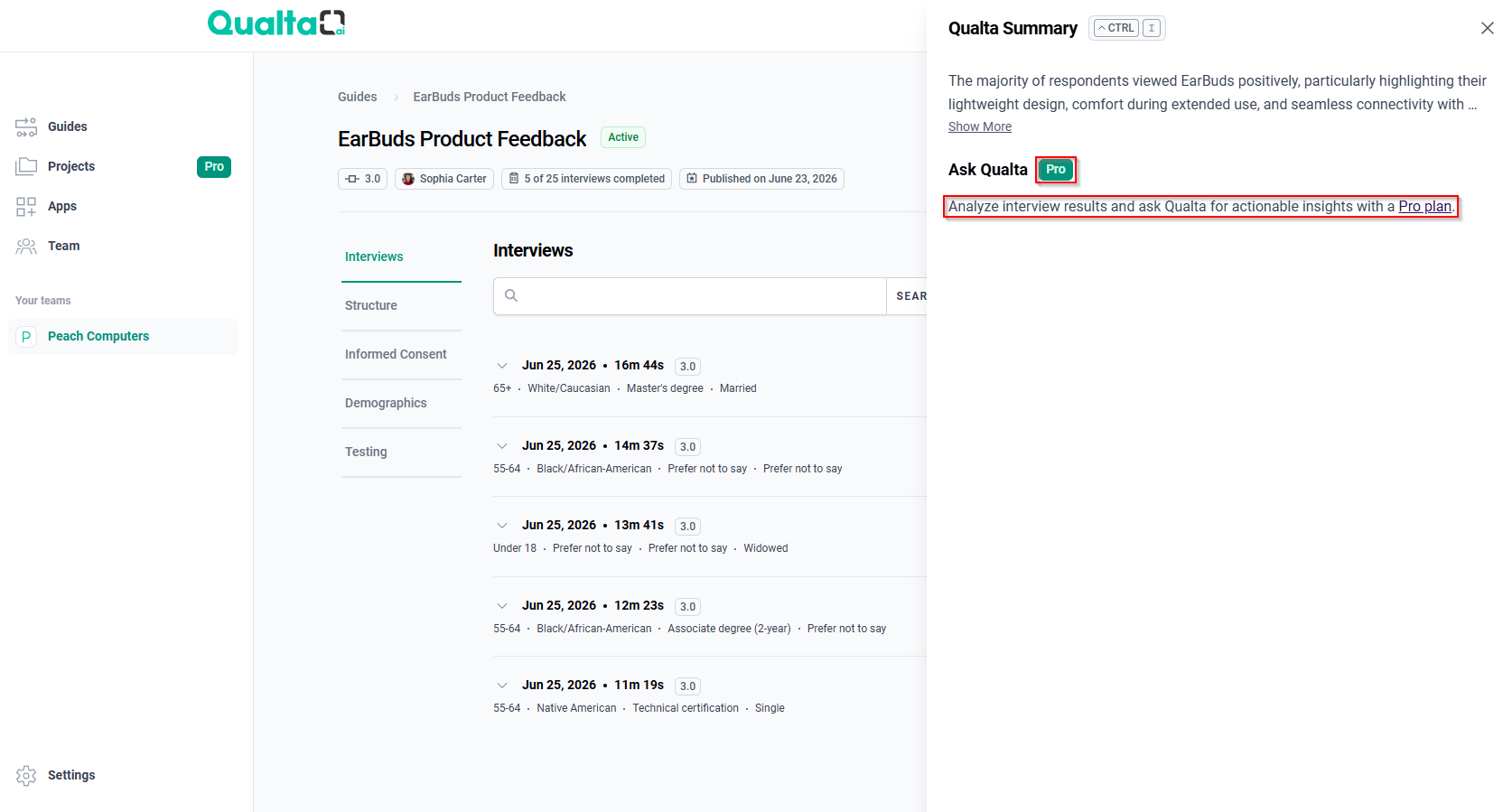
Additionally, Ask Qualta requires at least one interview to have been conducted within the Guide.
If there are no interviews, you will see an alert stating that Ask Qualta will be available after the first interview is conducted.
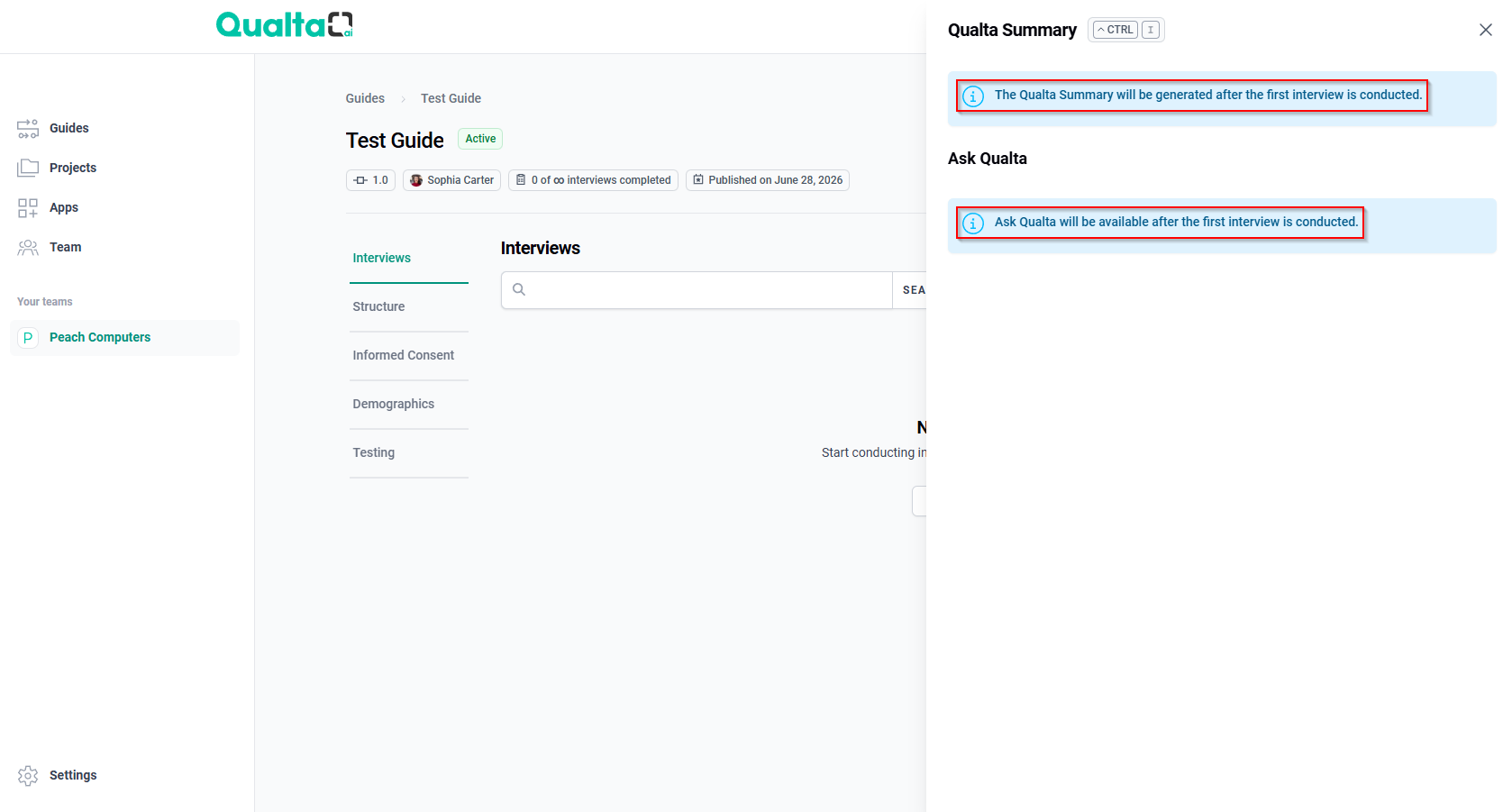
Once you meet these requirements, you can begin asking questions in the Ask Qualta panel.

Asking Questions and Getting AI Responses
Once the Ask Qualta panel is available, you can begin to ask questions about your Guide’s interview data.
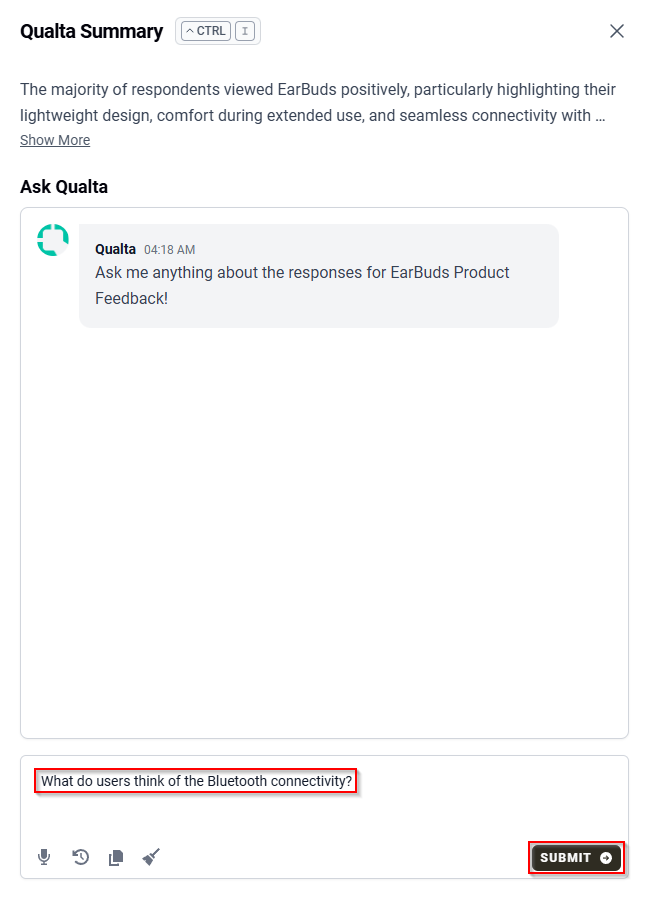
- Type your question in the text box at the bottom of the Ask Qualta panel. For example, you might ask: “What do users think of the Bluetooth connectivity?”
- Submit your question by pressing Shift + Enter on your keyboard or by clicking SUBMIT.
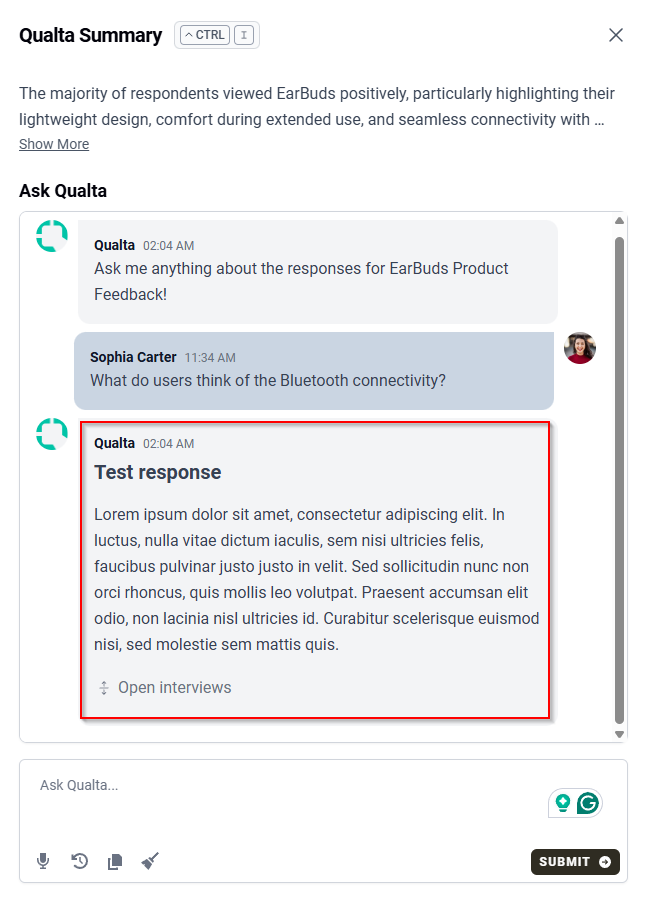
The AI will take a moment to process your question. Once the response is ready, an AI-generated response based on your interview data will appear in the Ask Qualta chat.
Reviewing Source Interviews
After Ask Qualta provides a response to your query, you have the option to review the specific interviews that contributed to the AI’s answer.
Locate and click the Open Interviews button at the bottom of the AI’s response.
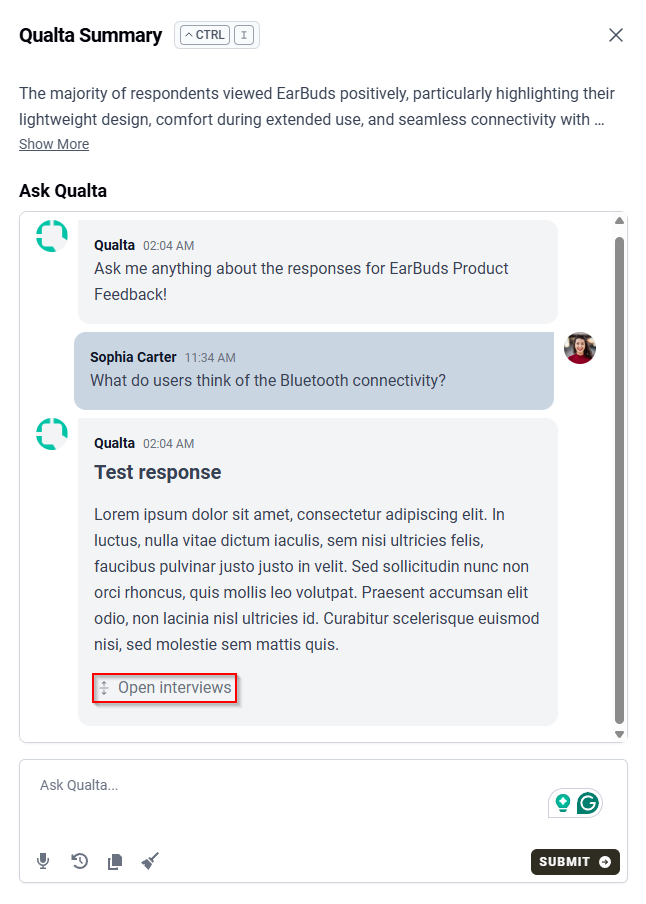
This action opens and expands the relevant interviews within the Interviews tab of the Guide’s detail page, which is visible in the background.
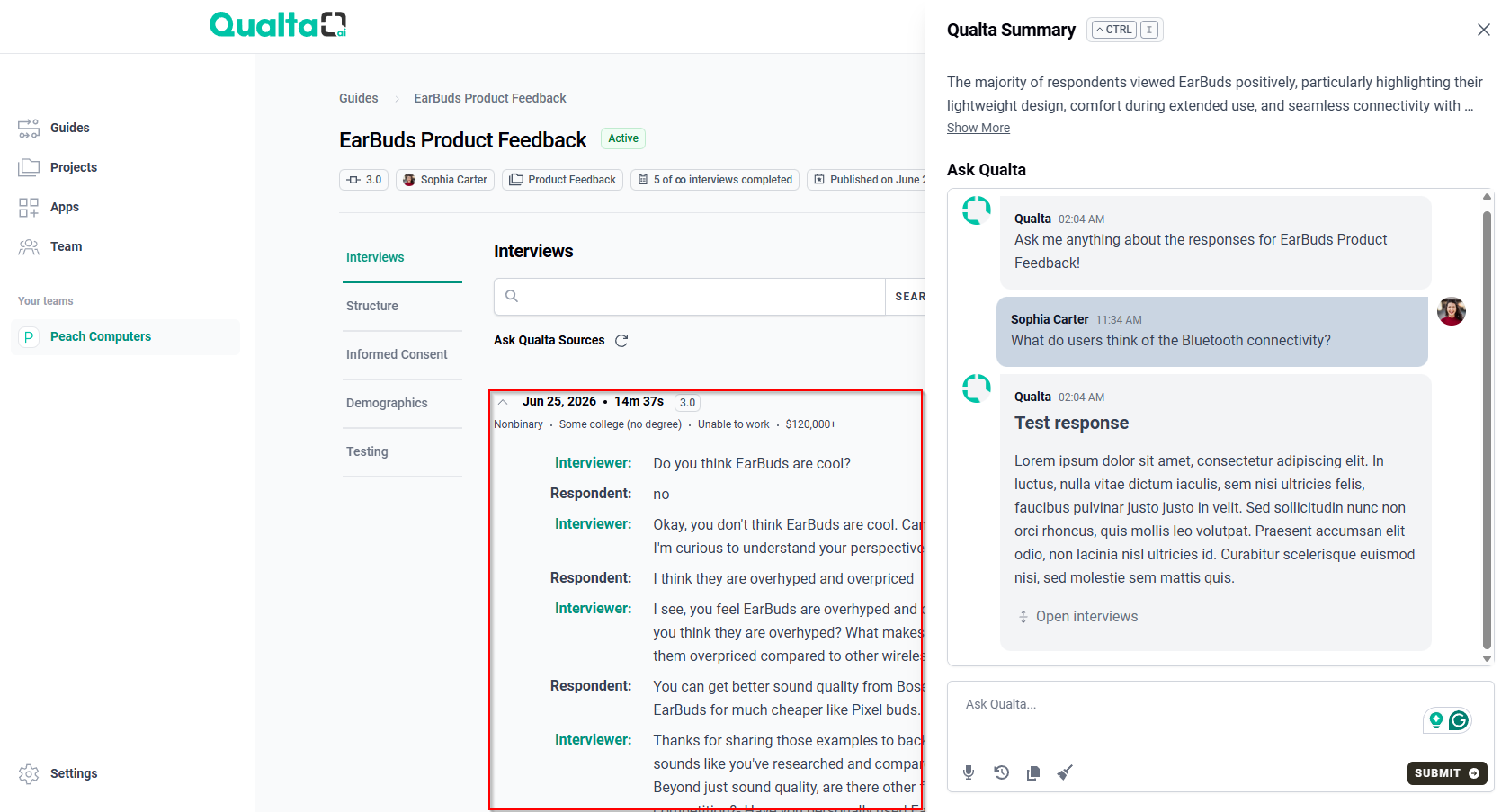
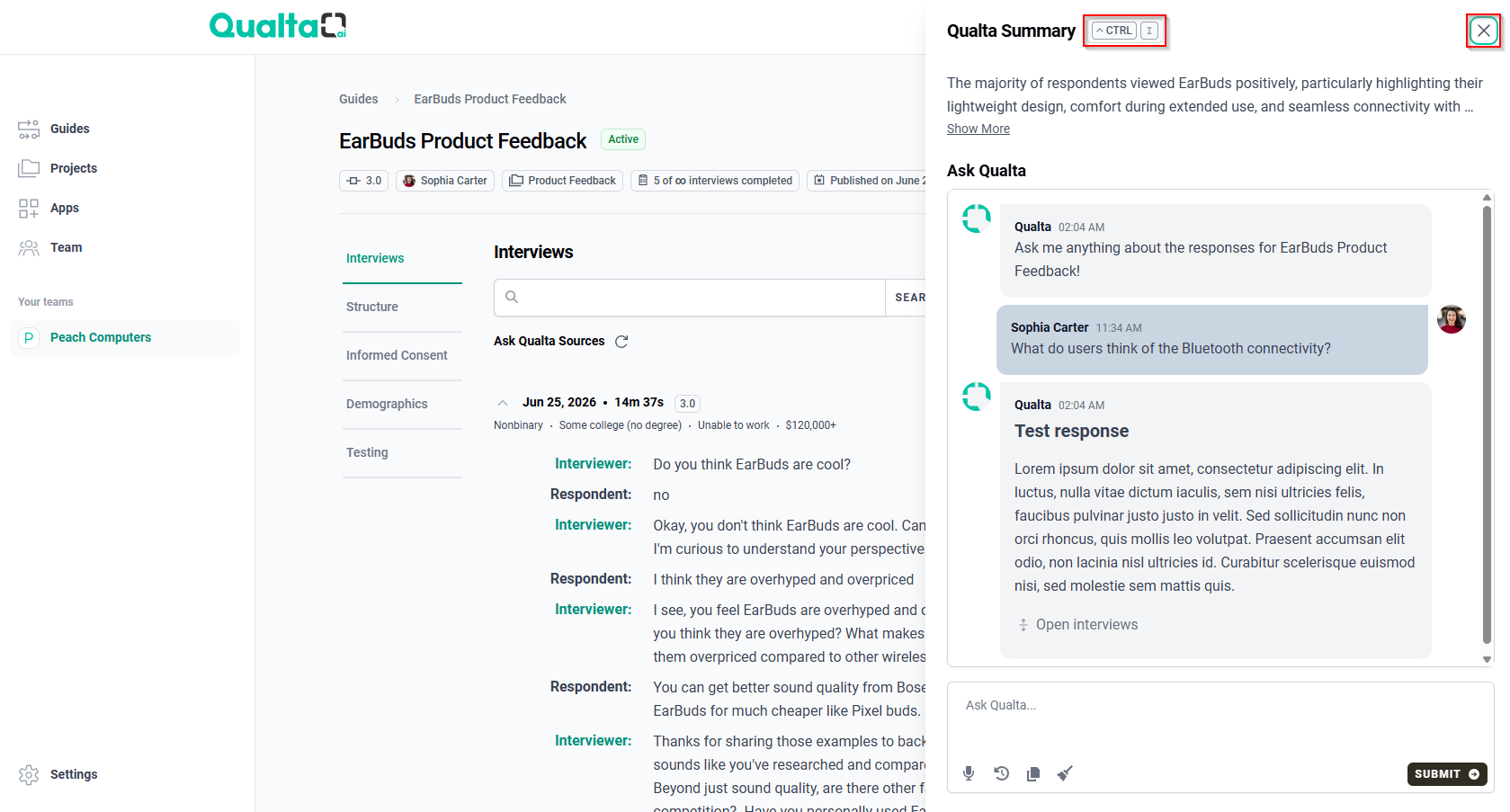
To view these interviews in their full context, you will need to close the Ask Qualta panel (your current session will be preserved, allowing you to easily reopen it and continue). You can do this by:
- Clicking the X button at the top right of the drawer.
- Using the keyboard shortcut (Command + I on Mac or Control + I on Windows).
- Clicking on any empty space outside the Ask Qualta panel.
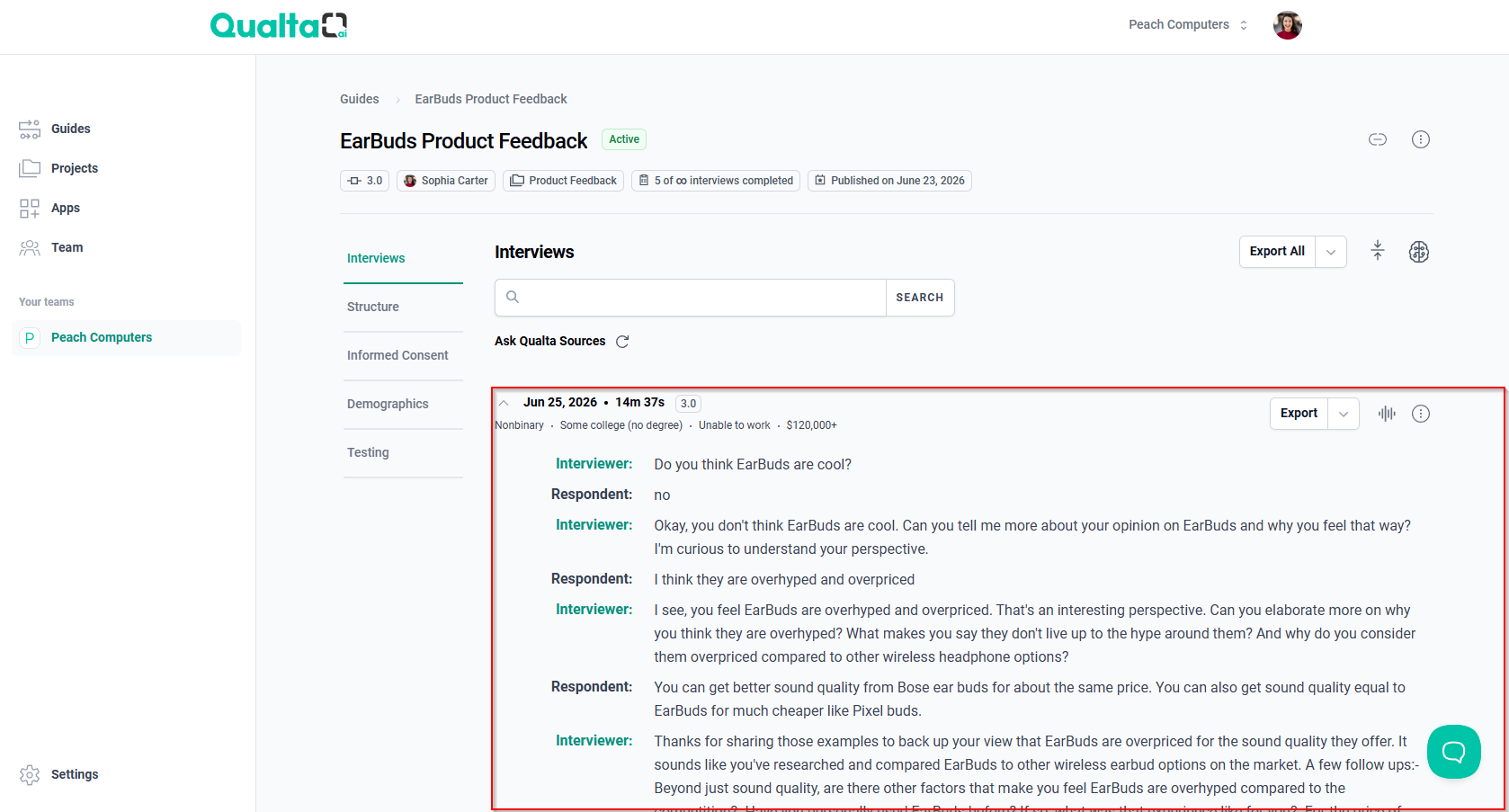
Once you have reviewed the interviews, you can reopen the Ask Qualta panel to return to your chat dialog and continue your analysis.
Managing Your Chat Sessions (Chat Controls)
The Ask Qualta panel includes several controls within the text area to help you manage your chat sessions effectively.
Copying Chat Transcripts
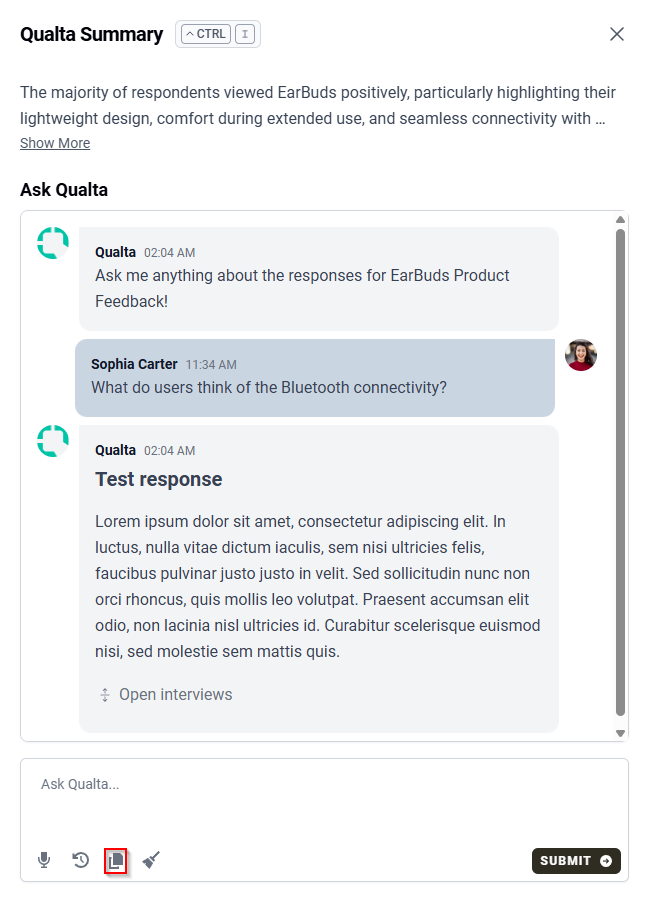
- Click the copy to clipboard button in the text area at the bottom of the Ask Qualta panel.
- This action copies the entire chat transcript to your clipboard, allowing you to paste it into another document or application.
Clearing the Chat
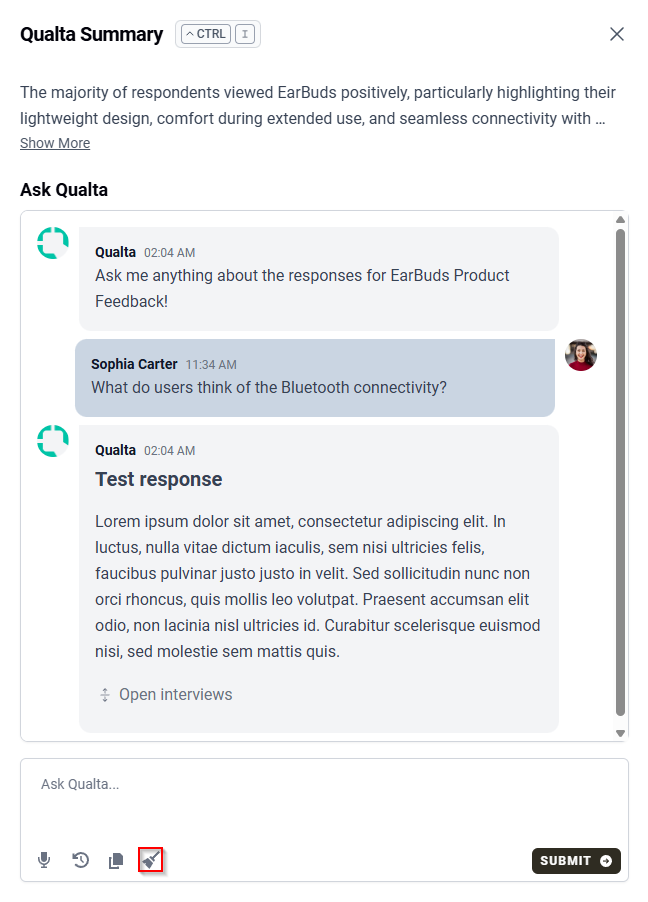
- Click the brush button located in the text area at the bottom of the Ask Qualta panel.
- This will clear all previous messages from the chat window, preparing it for a fresh Ask Qualta session.
Reviewing Ask Qualta History
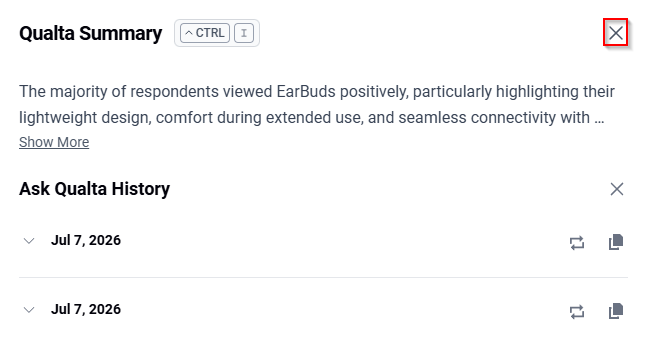
The Ask Qualta panel includes an Ask Qualta History panel that allows you to review your past analysis chat sessions.
Accessing History
Click the History button located in the text area at the bottom of the Ask Qualta panel.
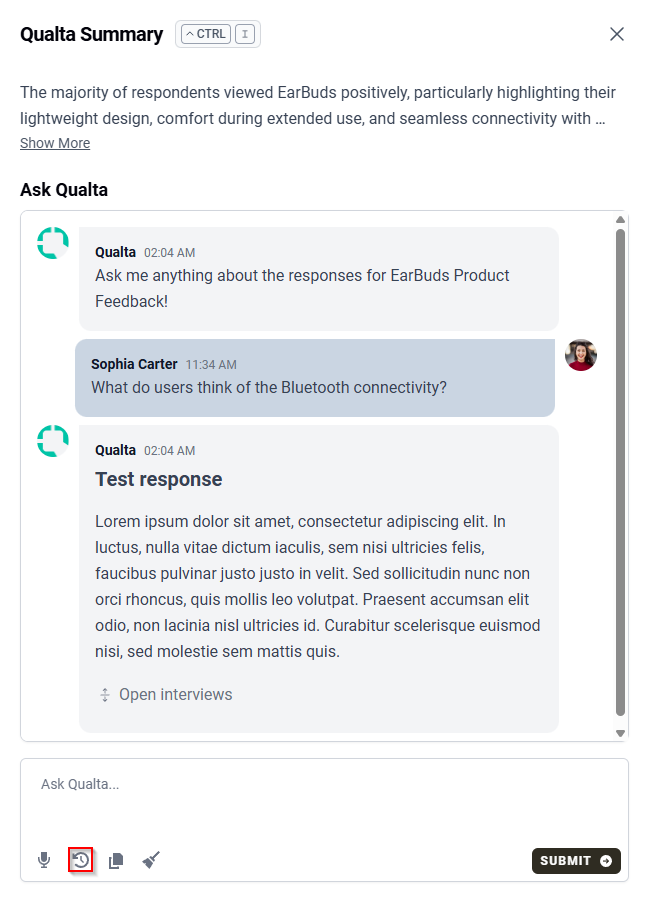
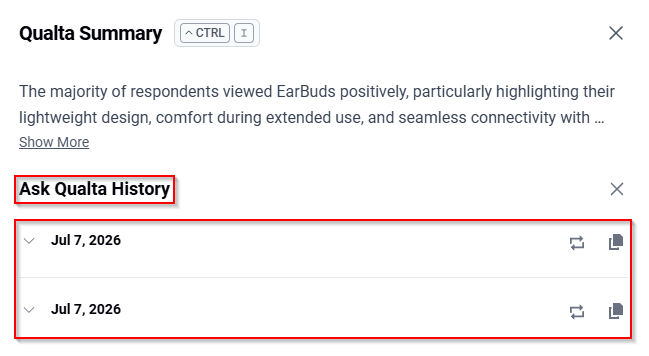
The Ask Qualta History panel will open within the Ask Qualta panel, displaying a list of your previous Ask Qualta chats.
Managing History Entries
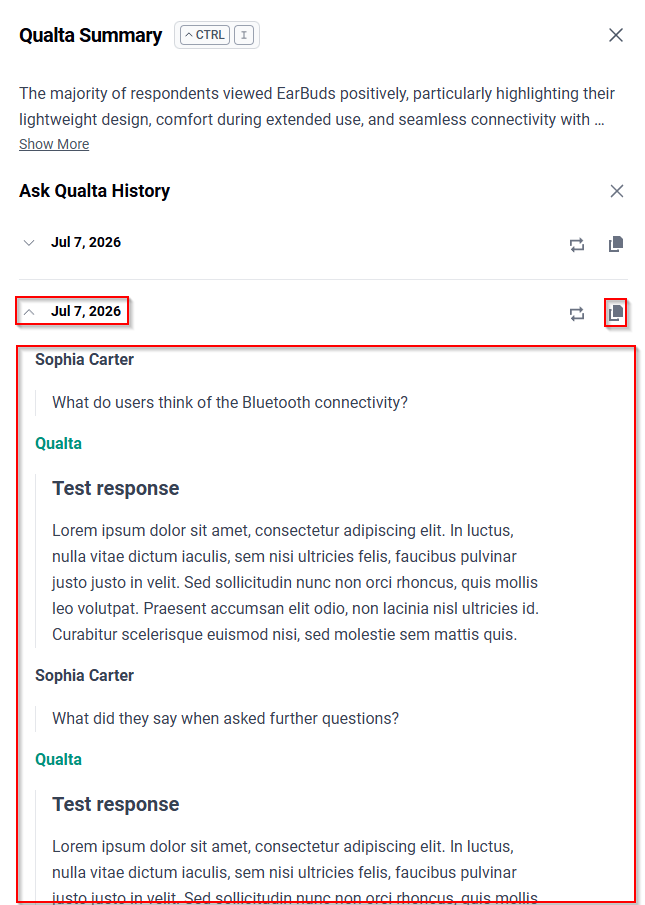
- Click on any history entry to expand it and view the full chat transcript.
- Click the copy to clipboard button next to a history entry to copy its transcript to your clipboard.
Resuming Analysis from History
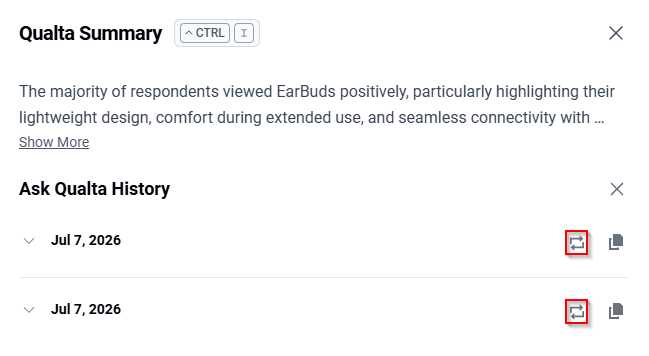
- To resume a past analysis session, click the Resume button next to the desired history entry.
- This action will repopulate the main chat window with that specific past chat.
- When you ask a new question, the AI will use the context of that resumed chat to inform its answer. Any subsequent questions and AI responses added to this resumed chat will update that particular history entry, ensuring your analysis record remains current.
To close the Ask Qualta History panel and return to the main Ask Qualta panel, click the X button located at the top of the Ask Qualta History panel.