
How to Delete a Project
| Delete a Project |
| Project Deletion Permissions |
Deleting a Project permanently removes the Project and all Guides associated with it.
Deleting a Project permanently deletes all Guides within the Project. To hide a Project while preserving its data, archive the Project instead.
Delete a Project
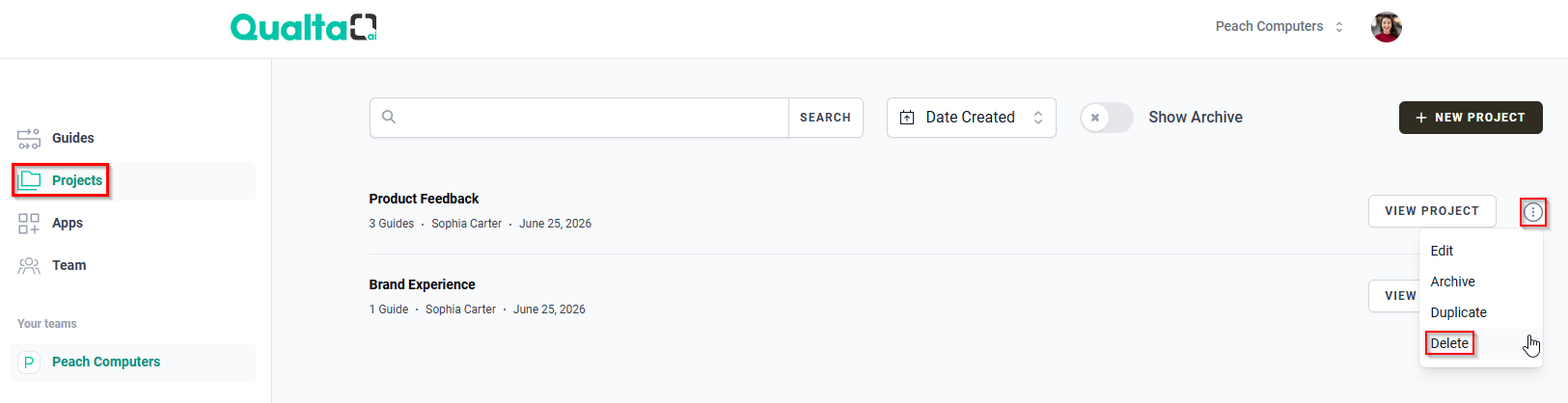
- Click Projects in the main navigation menu.
- Locate the Project you want to delete.
- Use the SEARCH bar to find a specific Project.
- Use the sort dropdown to change the order in which Projects are displayed.
- Enable Show Archive to display archived Projects.
- Hover over the More Options icon next to the Project.
- Click Delete.
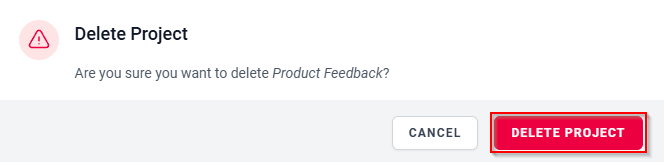
- In the Delete Project confirmation dialog, click DELETE PROJECT.
Project Deletion Permissions
The ability to delete a Project depends on your plan and your role.
| Role | Pro Plan | Enterprise Plan |
| Team Owner | ✅ Can Delete | ✅ Can Delete |
| Project Owner | ✅ Can Delete | ✅ Can Delete |
| Team Manager | ✅ Can Delete | ❌ Restricted |
| Team Administrator | ✅ Can Delete | ❌ Restricted |
| Project Administrator | Not Applicable | ✅ Can Delete |
If you do not see the Delete option, your account may not have permission to delete Projects.