Understanding Guide Status
| Guide Statuses |
| Update Guide Status |
Guide statuses indicate the current state of a Guide, such as whether it is a draft, actively collecting interviews, completed, or archived. This article explains what each status means, where statuses appear in Qualta AI, and how to update them.
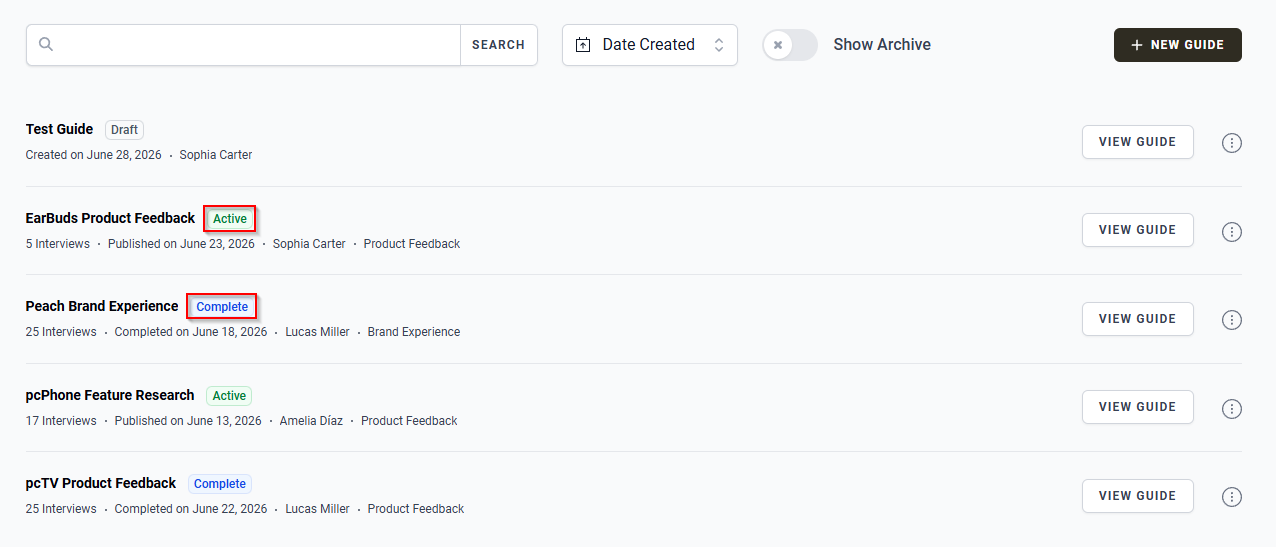
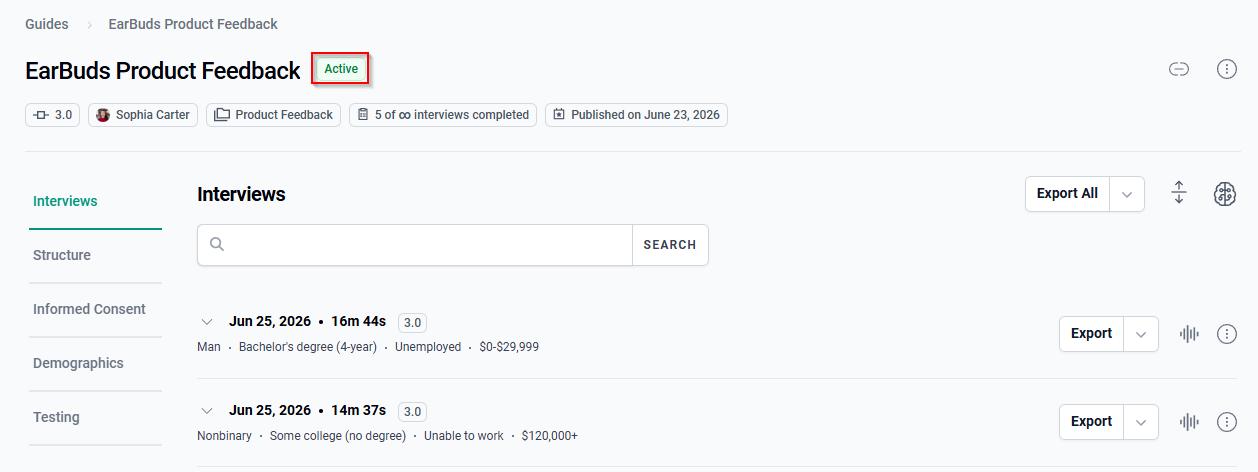
Guide status is displayed in two ways:
- As a badge in the Guide listing on the Guides page.
- As a badge next to the Guide's name on the Guide Detail page.
Guide Statuses
A Guide may have one of the following statuses:
Draft
An unpublished Guide is marked as Draft. This means the Guide is not collecting interviews, and the public interview link cannot be accessed.
Scheduled
A published Guide with a future Start Date is marked as Scheduled. The Guide will not collect interviews until the scheduled start date, but the public interview link is accessible, so you can share it in advance.
Active
A published Guide that is currently collecting interviews is marked as Active. The Guide will collect interviews until it is set to Draft, it has reached its scheduled End Date, it has reached its Interview Limit, or it is archived.
Complete
A Guide that has reached its End Date or Interview Limit is marked as Complete. The Guide returns to Active only if its Interview Limit is increased or its End Date is extended.
Archived
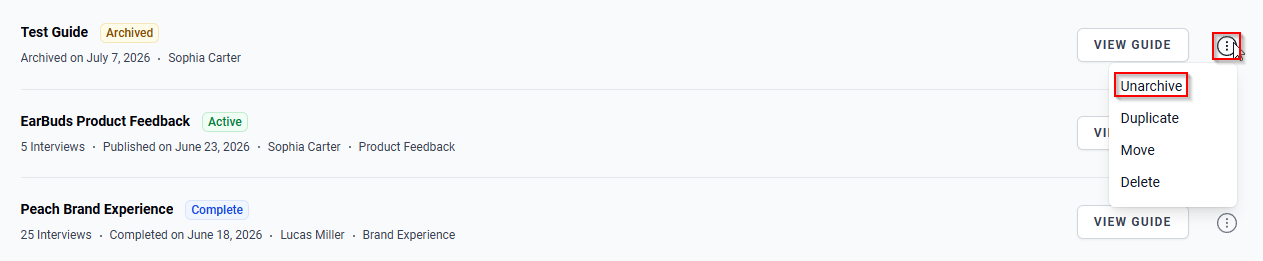
A Guide that has been archived by a Team Member is marked as Archived. The Guide may be unarchived at any time.
To view archived Guides, toggle Show Archive on the Guides page.

Update Guide Status
You can update a Guide's status by selecting the desired state from the Guide's More options menu.
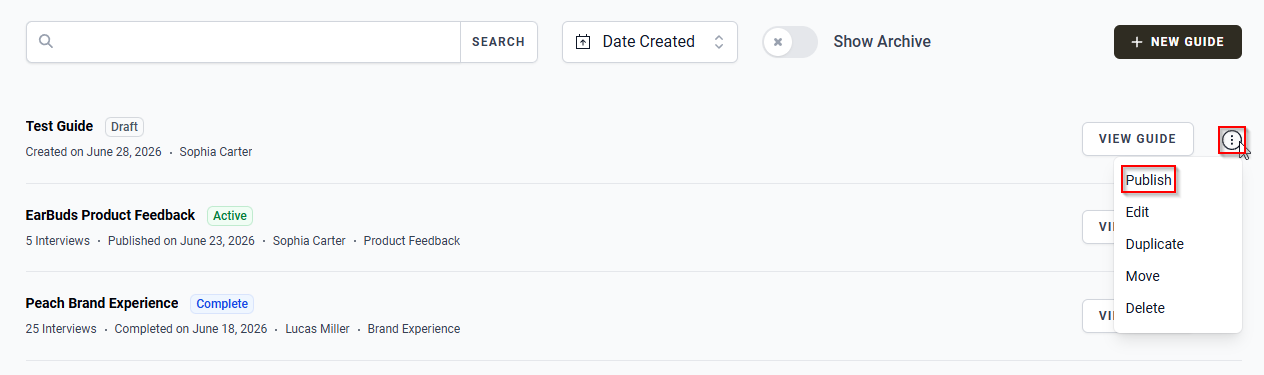
Draft > Active
Hover over the More options icon next to the Guide, then select Publish.
Active > Draft
Hover over the More options icon next to the Guide, then select Set to Draft.
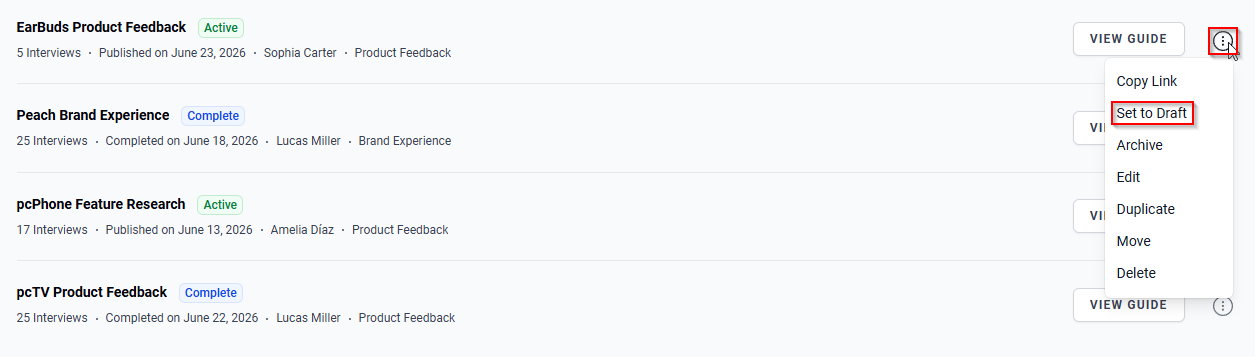
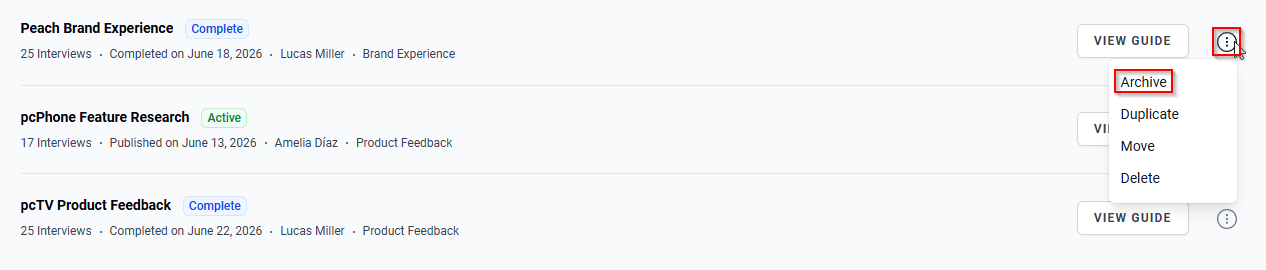
Active / Complete > Archived
Hover over the More options icon next to the Guide, then select Archive.
Archived > Active / Complete
Hover over the More options icon next to the Guide, then select Unarchive.