
How to Duplicate a Demographic
| Choose a Demographic to Duplicate |
| Duplicate a Demographic |
The Demographics feature in Qualta AI lets teams create and manage demographics for interview guides and respondent data.
Duplicating a demographic quickly creates a new option based on an existing one, saving time when reusing or modifying categories. You can duplicate both default and custom demographics, then edit the duplicate to fit your needs.
This article will guide you through duplicating a demographic and explain what you can do with the duplicated version.
Only Managers, Administrators, and Team Owners may manage demographics.
Choose a Demographic to Duplicate
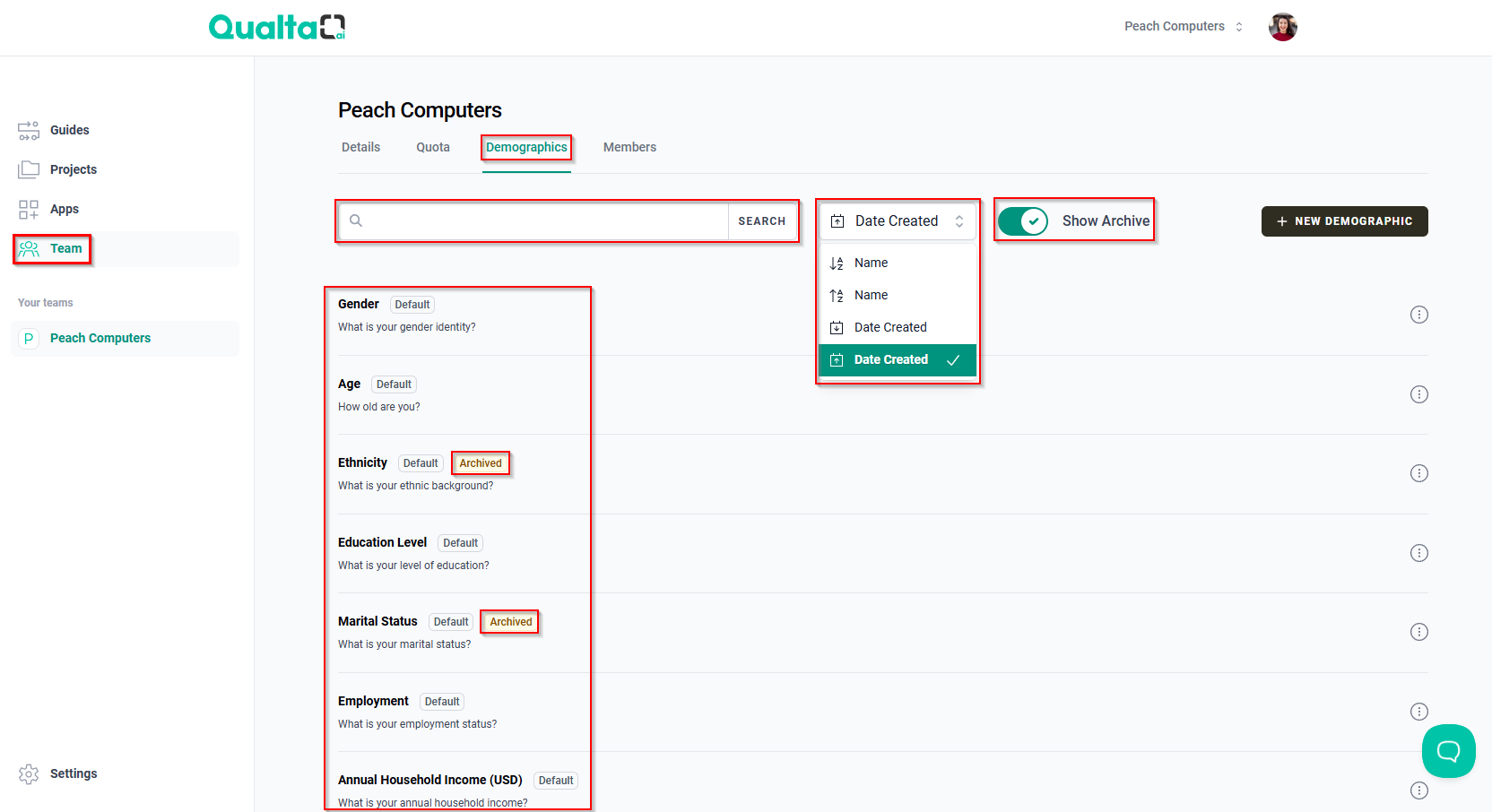
- First, go to the Team page in the navigation menu.
- Next, select the Demographics tab to view existing demographic options.
- In the Demographics tab, use the SEARCH bar to locate the specific demographic you wish to duplicate by name.
- Alternatively, use the sorting options menu to sort by Name or Date Created.
- If needed, toggle Show Archive to include archived demographics in your search
Archived demographics will appear with an Archived label.
Duplicate a Demographic
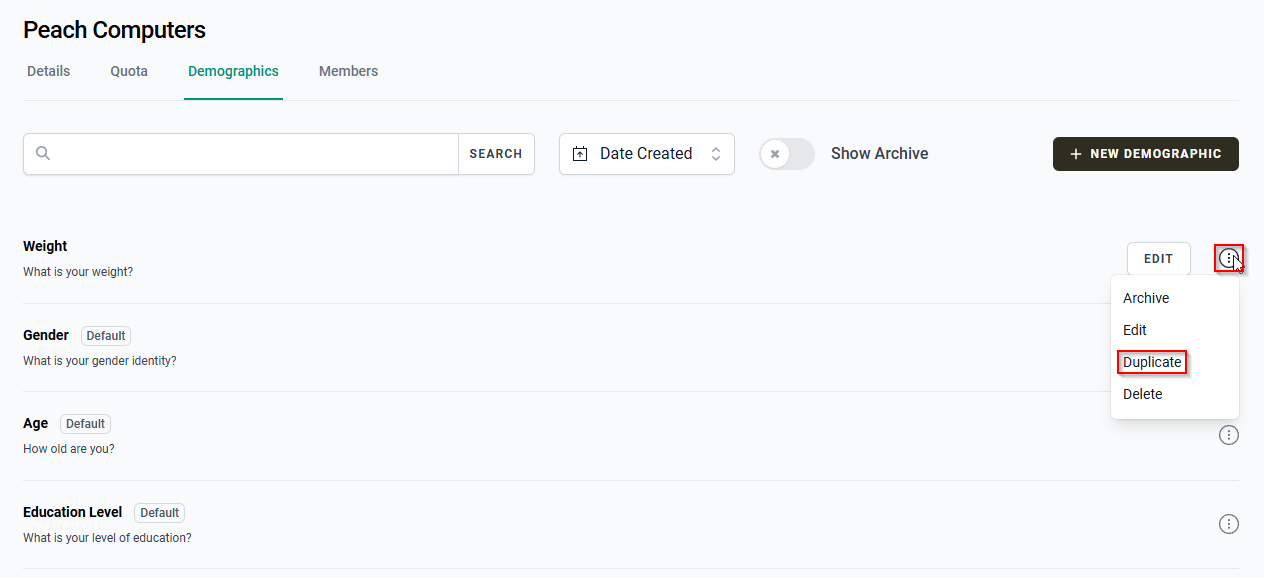
Once you have identified the demographic you want to duplicate, hover your mouse pointer over the More options icon (three vertical dots) to its right, then select Duplicate.
Default demographics cannot be edited or deleted; only duplicated or archived.
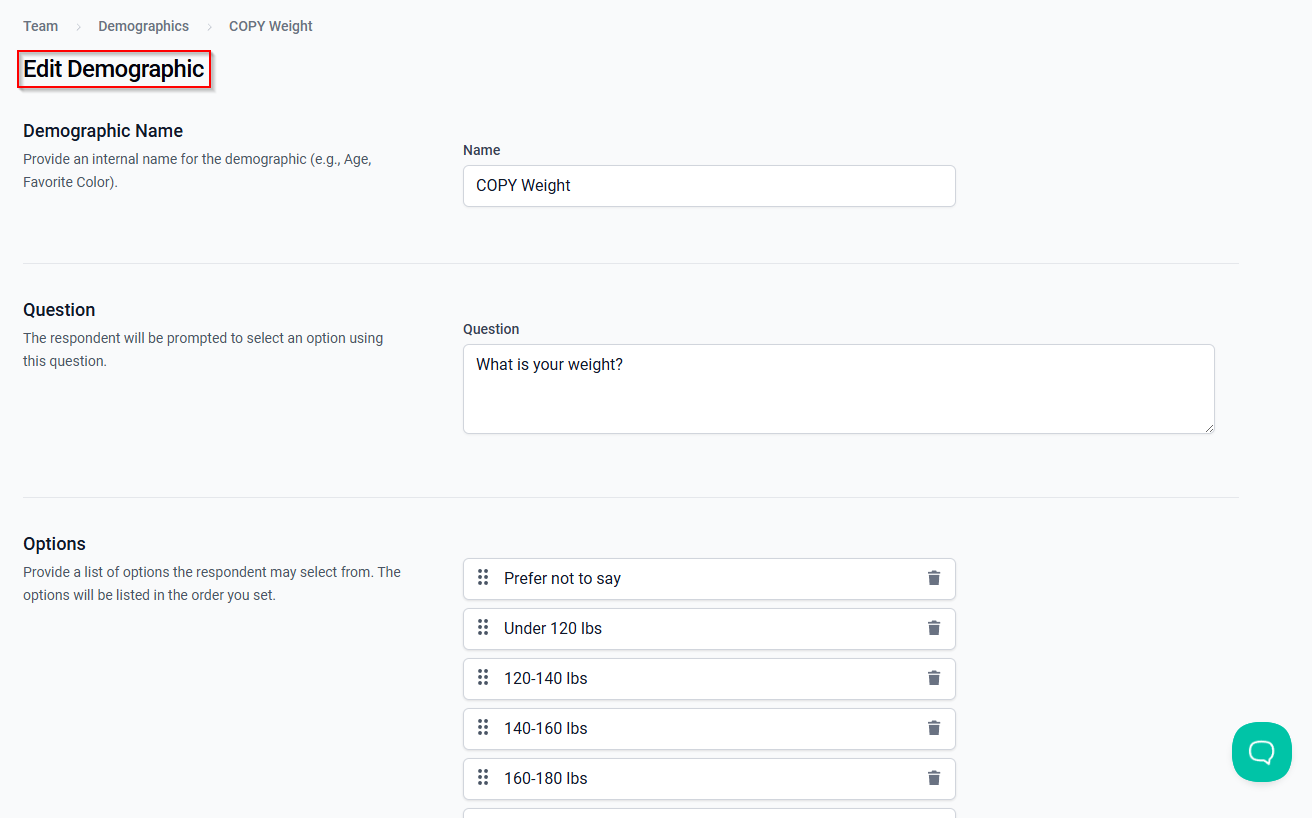
After clicking Duplicate, you'll be taken to the Edit Demographic page, where you can update the name, question, and options for your new demographic.
For detailed instructions on editing a demographic, see How to Edit a Demographic.
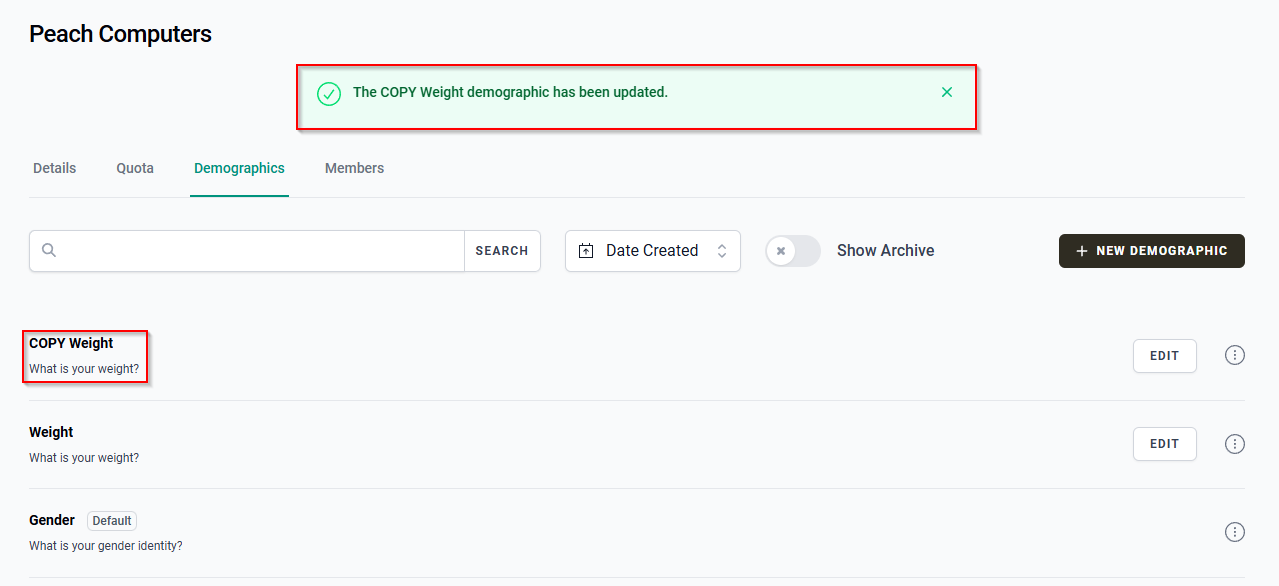
After you finish editing and click SAVE, you'll be redirected to the Demographics tab.
Your newly duplicated demographic will appear in the list, and you'll see a green confirmation alert at the top of the page.
Duplicating demographics helps you quickly create new options based on existing ones, saving you time.