
How to Archive a Demographic
| Choose a Demographic to Archive |
| Archive a Demographic |
| Unarchive a Demographic |
The Demographics feature in Qualta AI lets teams create and manage demographic options for interview guides and respondent data.
Archiving a demographic removes it from available options when creating or editing Guides, helping keep your demographic list organized without permanently deleting data. You can also unarchive a demographic to restore it for use.
This article will guide you through archiving and unarchiving a demographic and explain key behaviors related to archived demographics.
Only Managers, Administrators, and Team Owners may manage demographics.
Choose a Demographic to Archive
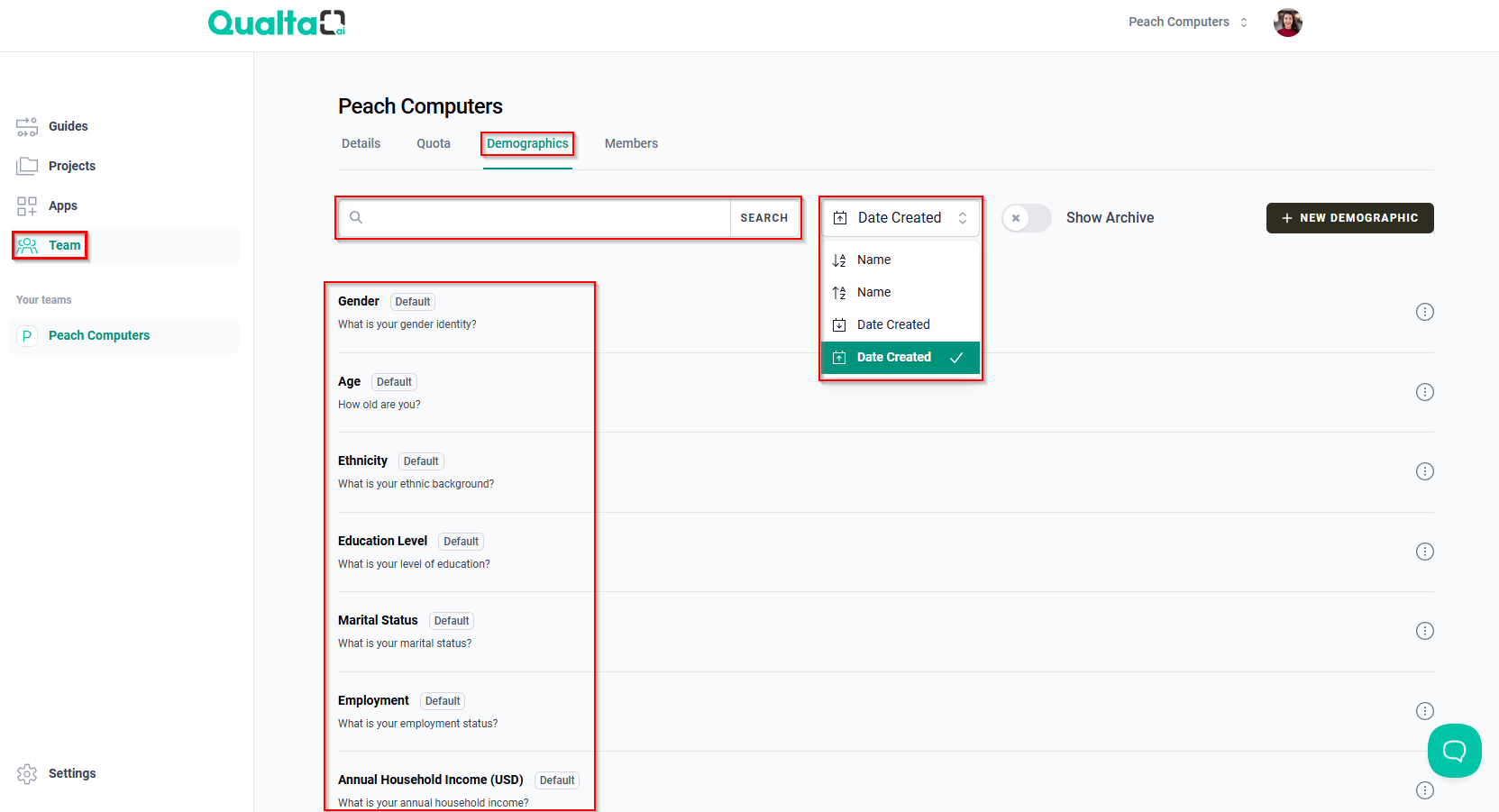
- First, go to the Team page in the navigation menu.
- Next, select the Demographics tab to view existing demographic options.
- In the Demographics tab, use the SEARCH bar to locate the specific demographic you wish to archive by name.
- Alternatively, use the sorting options menu to sort demographics by Name or Date Created.
Archive a Demographic
- Once you have identified the demographic you want to target, hover your mouse pointer over the More options icon (three vertical dots) to its right.
- Select Archive.
Default demographics cannot be edited or deleted; only duplicated or archived.
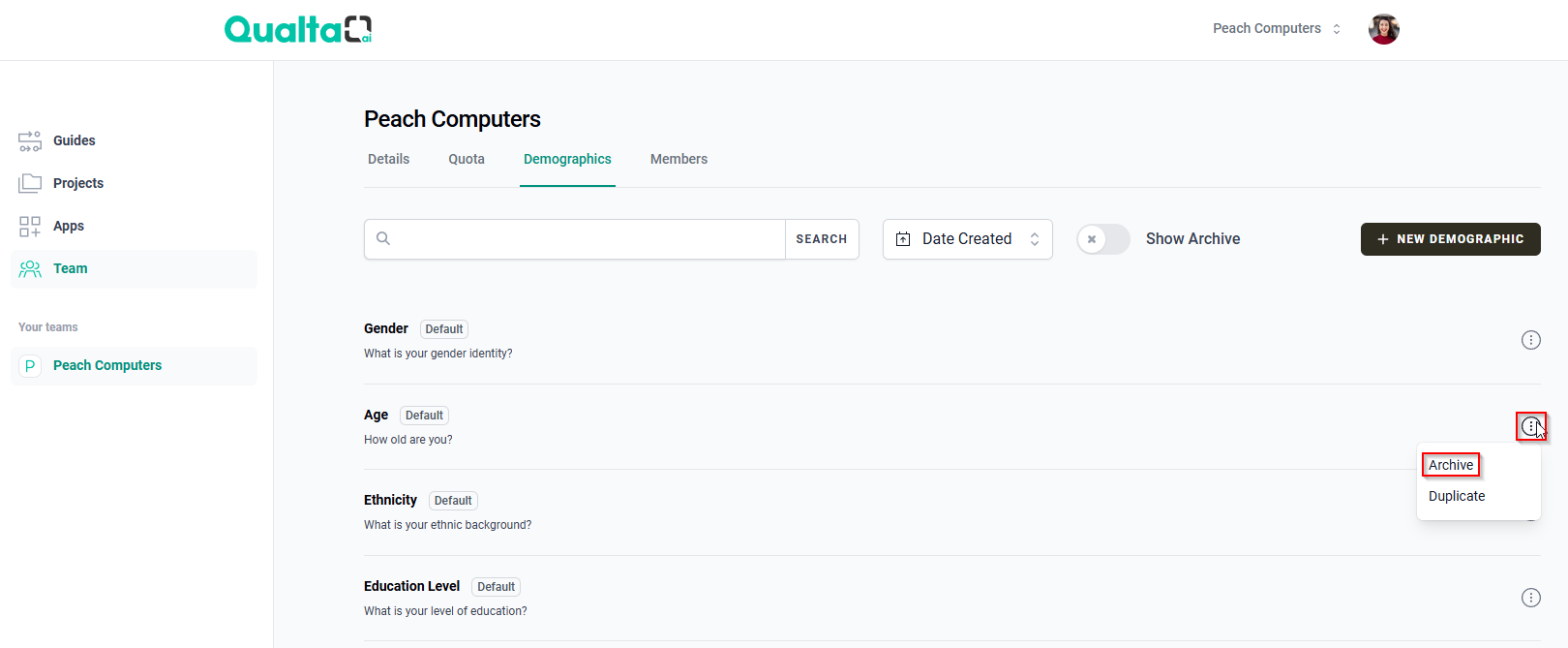
Archiving a demographic means it will no longer be an available option when creating or editing a Guide. However, it may still appear in Guide detail pages and interview data exports.
An archived demographic question will continue to be shown to respondents if it has already been selected for a Guide. To stop collecting that demographic for a Guide, edit the Guide and deselect it. For detailed instructions, see How to Edit a Guide.
Unarchive a Demographic
- To unarchive a demographic, toggle Show Archive in the Demographics tab. (This will make visible the demographics that have already been archived.)
- Once you have identified the demographic you want to unarchive, hover your mouse pointer over the More options icon to its right.
- Select Unarchive.
Archived demographics will appear with an Archived label.
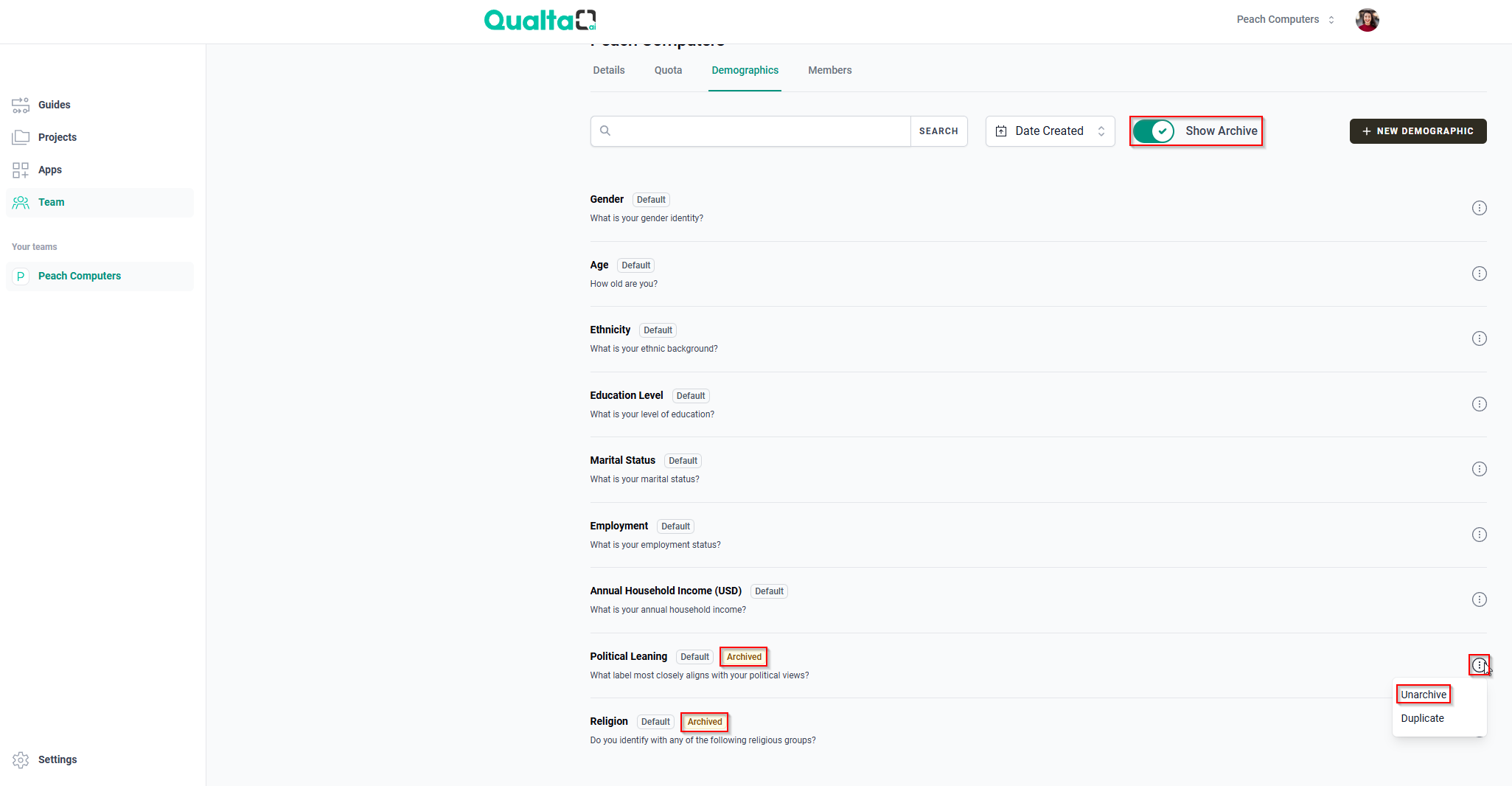
That demographic will then appear as active (unarchived) in the list.
This process helps keep your demographic options relevant and manageable while preserving historical data integrity.