
How to Delete a Demographic
| Choose a Demographic to Delete |
| Delete a Demographic |
The Demographics feature in Qualta AI lets teams create and manage demographics for interview guides and respondent data.
This article explains how to delete a demographic and outlines the conditions under which a demographic can be deleted or must instead be archived.
Only Managers, Administrators, and Team Owners may manage demographics.
Choose a Demographic to Delete
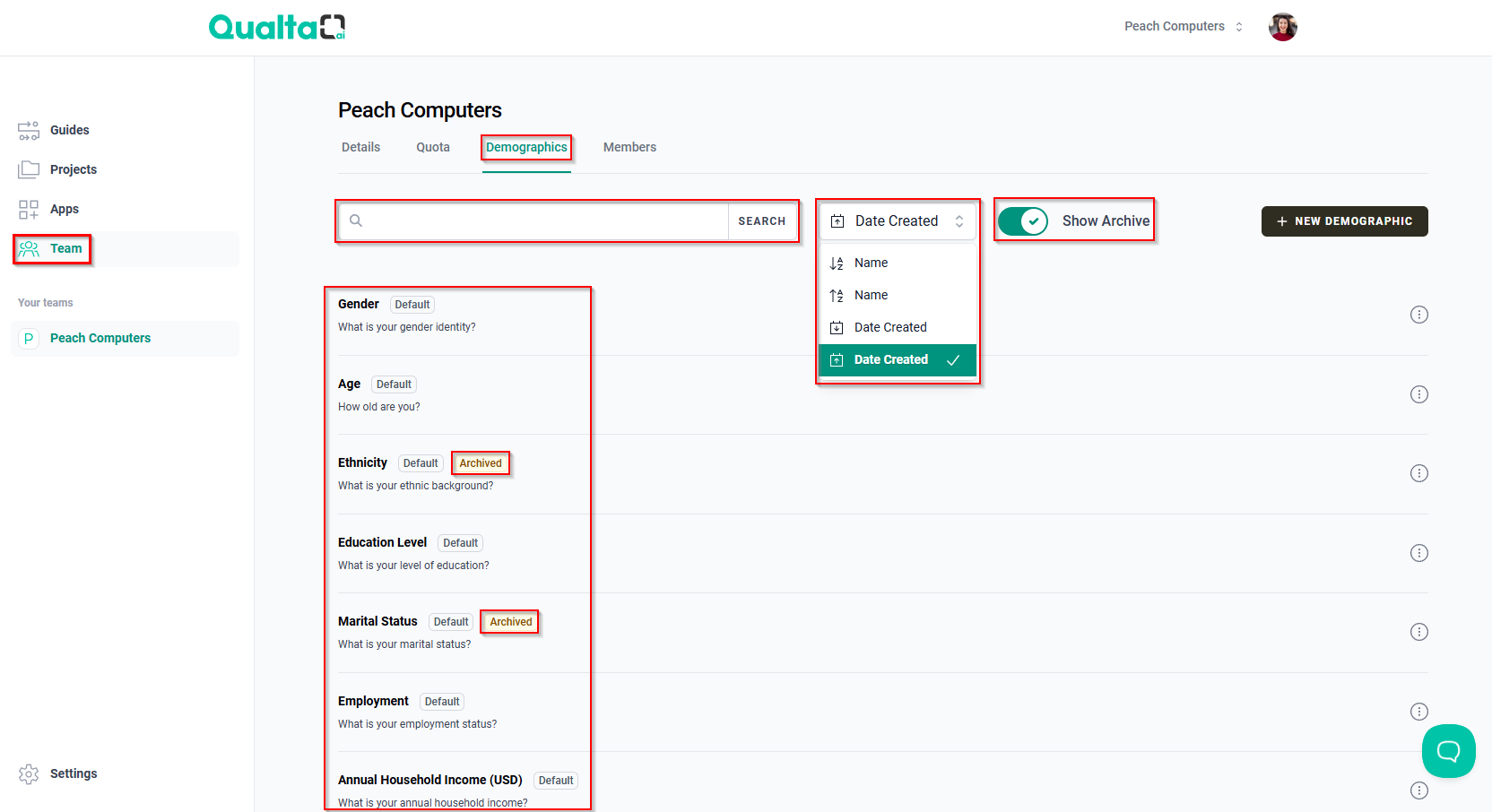
- First, go to the Team page in the navigation menu.
- Next, select the Demographics tab to view existing demographic options.
- In the Demographics tab, use the SEARCH bar to locate the specific demographic you wish to delete by name.
- Alternatively, use the sorting options menu to sort demographics by Name or Date Created.
- If needed, toggle Show Archive to include archived demographics in your search.
Archived demographics will appear with an Archived label.
Delete a Demographic
- Once you've found the demographic to delete, hover your mouse pointer over the More options icon (three vertical dots) on its right.
- Select Delete (if available).

A demographic can only be deleted if it has not been used in a Guide response. Otherwise, it must be archived.
A Default demographic cannot be edited or deleted. It can only be duplicated or archived.
If deletion is not possible, select Archive instead. For detailed instructions, see How to Archive a Demographic.
- After clicking Delete, a confirmation pop-up will appear asking if you are sure you want to delete the demographic. Review the demographic name shown in the message.
Deleting a demographic is permanent and cannot be undone. Make sure you want to remove this demographic before proceeding.
- To proceed, click the red DELETE DEMOGRAPHIC button. If you do not want to delete, click CANCEL to return without making changes.

After clicking the red DELETE DEMOGRAPHIC button in the confirmation pop-up, the demographic will be permanently removed from the list.
A green confirmation message will appear at the top of the page stating that the demographic has been deleted.
